Welcome to KnowHow Daily!
Practical guides, money-saving tips, tech solutions, government benefits, and useful information for everyday life.
Welcome to KnowHow Daily!
Practical guides, money-saving tips, tech solutions, government benefits, and useful information for everyday life.

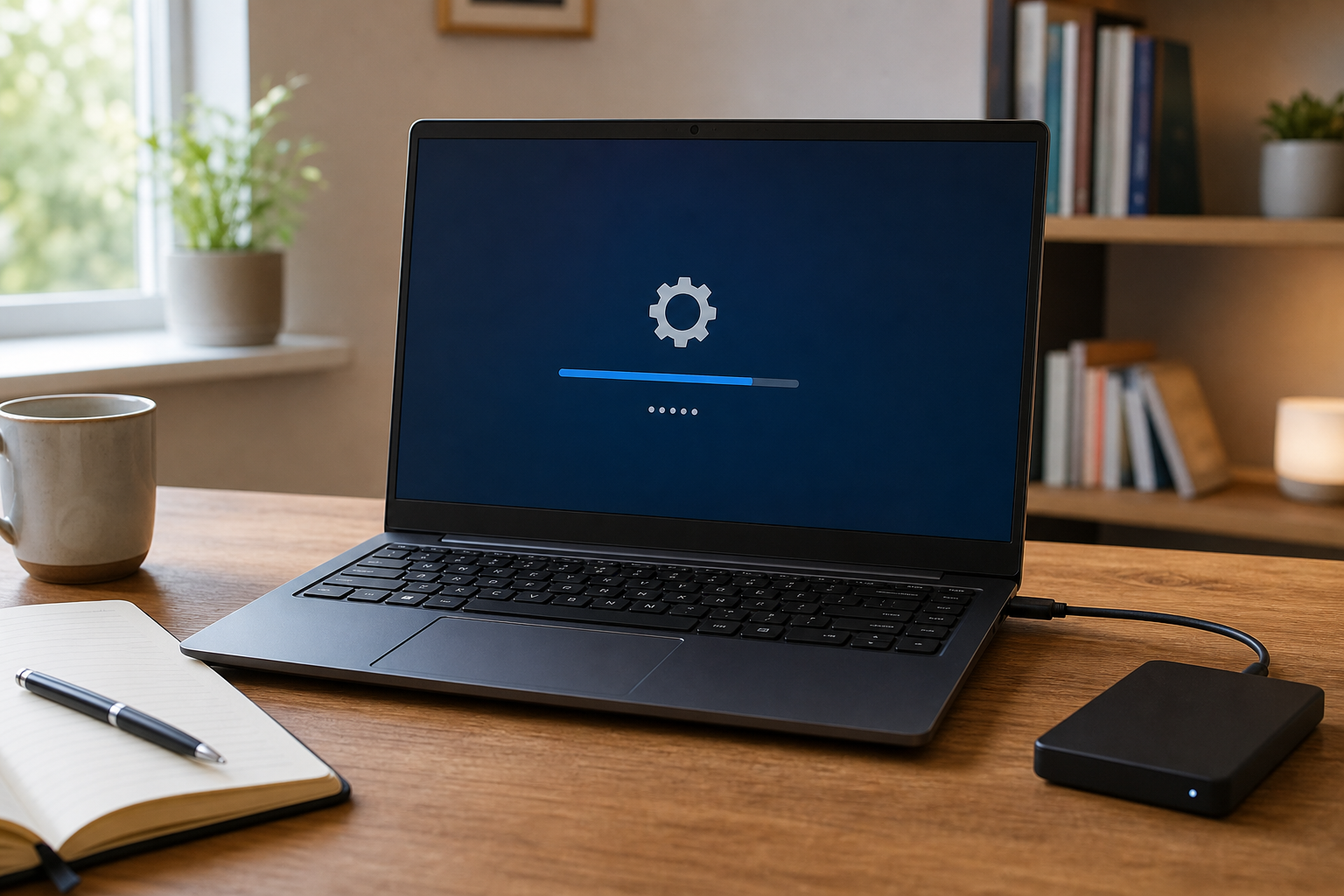
Windows 11 26H2 is rolling out. Learn how to check for the update, understand enablement packages and safeguard holds, and decide whether to install it now.

Microsoft announced the Windows 11 2026 Update, also called version 26H2, on September 29, 2026. The release is now available for eligible devices running Windows 11 versions 24H2 or 25H2, but it will not appear on every computer at the same time.
The most important distinction is that 26H2 is not necessarily a large, traditional operating-system upgrade. For eligible PCs, Microsoft is delivering it as an enablement package. That package activates features and changes that have already been delivered through earlier monthly updates, so the download and installation can be relatively small and quick.
Availability still depends on Microsoft’s controlled rollout. If your computer does not show 26H2 yet, that does not automatically mean it is incompatible or broken. It may simply not be in the current rollout group, or Microsoft may be holding the update because of a known compatibility issue.
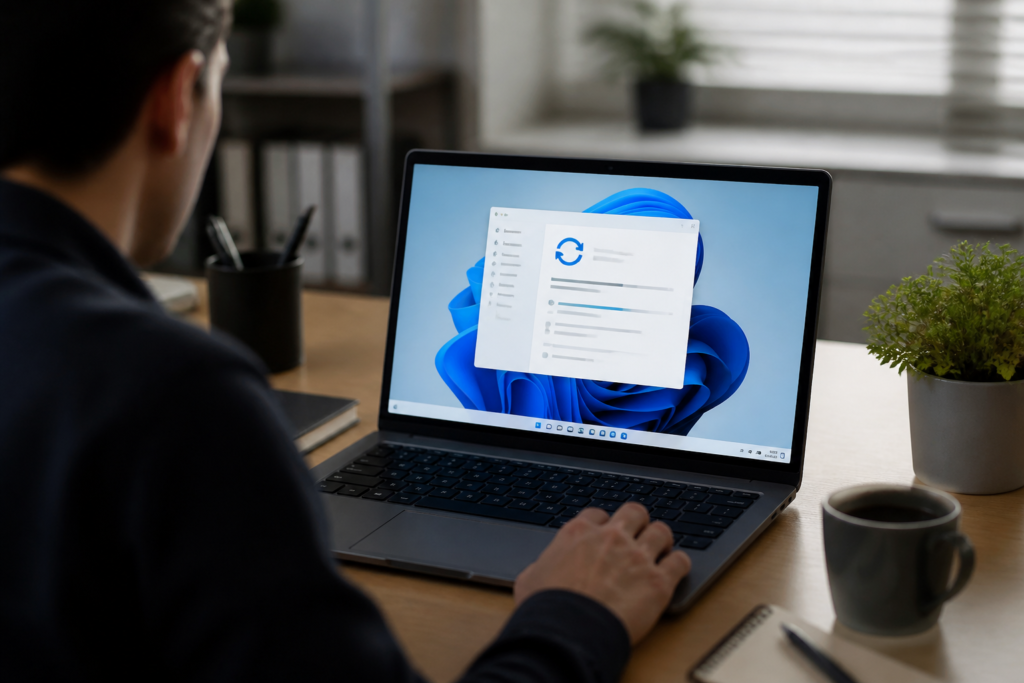
On a personal Windows 11 PC, open Settings > Windows Update, then select Check for updates. If the update is available for your device, Windows should show an option to download and install Windows 11 version 26H2.
Microsoft also provides a setting called Get the latest updates as soon as they’re available. Turning it on prioritizes your device for certain non-security updates, feature updates, fixes, and improvements. It does not remove Microsoft’s compatibility checks, and it does not guarantee that 26H2 will appear immediately.
Whether the setting is on or off, regular security updates continue. The choice mainly affects how quickly your PC receives additional features and non-security changes.
Open Microsoft's Windows Update instructionsFirst, install any pending updates for your current Windows version and restart the PC. Then return to Windows Update and check again. A gradual rollout can also mean that two otherwise similar computers receive the offer on different days.
Do not download an installation file from an unofficial website simply because Windows Update has not offered the release. Microsoft recommends using Windows Update as the normal installation path because it can account for device compatibility and known issues.
For older PCs or systems being upgraded from Windows 10, Microsoft’s PC Health Check app can help confirm whether the device meets Windows 11’s hardware requirements. That check is more relevant to the underlying Windows 11 eligibility than to the timing of the 26H2 rollout itself.
Use Microsoft's PC Health Check appA safeguard hold temporarily prevents Windows Update from offering a feature update to a device when Microsoft has identified a compatibility problem. The issue could involve a driver, application, peripheral, security product, or another part of the update experience.
A hold is a protective measure, not a message that your PC has failed an eligibility test. Microsoft removes the hold after a fix is available and has been validated on affected devices. The Windows release health information is the best place to look for known issues and current rollout details.
Check Microsoft's Windows 11 release health informationHome users generally should not try to bypass a safeguard hold. Microsoft warns that disabling the protection can expose a device to known performance or reliability problems, and bypassing the hold does not guarantee that the update will install successfully.
Organizations may have controlled testing reasons to override safeguards on selected devices, but that is an IT administration decision. It is not a sensible shortcut for a family computer or a work laptop that needs to remain dependable.
For most people, the practical answer is yes, when Windows Update offers it and your important apps and devices are working normally. Microsoft recommends updating eligible devices to receive the latest quality, reliability, and security improvements.
There is less risk in accepting an update that Windows Update has specifically offered for your device than in forcing an update that has not been offered. The staged approach gives Microsoft time to identify problems before expanding availability.
You may want to wait briefly if your computer is essential for work, school, medical equipment, specialized printing, audio production, gaming accessories, or older business software. Waiting does not mean ignoring the update indefinitely. It gives you time to check the release health page, confirm that vendors support your setup, and make sure you have a current backup.
| Your situation | Reasonable choice |
|---|---|
| Everyday home PC with current apps and backups | Install 26H2 when Windows Update offers it. |
| Work or school computer with specialized software | Check with the software or device provider before installing. |
| Windows Update shows a safeguard or compatibility message | Wait for the issue to be resolved; do not force the update. |
| Computer has pending updates or very little free storage | Finish current updates and free space before trying again. |
| Business or education fleet | Test a representative group before wider deployment. |
The enablement-package design can make the installation faster, but it is still a Windows feature update. A few minutes of preparation can prevent a much longer recovery process.
After installation, check your apps, printers, displays, VPN connection, and other equipment before returning the computer to an important task. If something does not work, review Windows Update history and the device manufacturer’s support information rather than immediately trying to install the update again.
Microsoft has stated that Windows 11 24H2 Home and Pro editions reach the end of updates on October 13, 2026. That date makes the move to a supported release more important for people still using those editions.
Enterprise and Education editions follow a different support schedule, so managed organizations should use Microsoft’s release and lifecycle information for their specific edition. Businesses should also validate line-of-business applications and deployment policies before expanding the update beyond a test group.
For most home users, the sensible path is straightforward: keep Windows fully patched, check Windows Update, install 26H2 when Microsoft offers it, and avoid bypassing a compatibility hold.
Start by documenting the symptom and checking Windows Update’s update history. Confirm whether the problem affects one application, a driver, or the entire system. Installing current updates for the affected app or device may resolve the issue.
If the PC becomes unstable immediately after the update, use Microsoft’s official Windows Update troubleshooting guidance and recovery options. Avoid deleting system files or using unofficial “fix” utilities that promise to force the upgrade or repair Windows automatically.
Review Windows recovery options Troubleshoot Windows Update problemsA. No. Microsoft says version 26H2 is available for eligible devices running Windows 11 versions 24H2 or 25H2, but availability is controlled and may vary by device. A safeguard hold can also delay the offer.
A. No. The setting prioritizes your device for certain feature and non-security updates, but Microsoft can still delay 26H2 because of rollout controls or a compatibility safeguard.
A. Home users should generally wait. Microsoft says bypassing a safeguard can expose the device to known performance or compatibility problems and does not guarantee a successful installation. Overrides are mainly intended for controlled IT validation.
A. The normal Windows Update feature-update process is designed to preserve personal files and installed applications, but you should still create a current backup before installing any major Windows update.
A. Windows 11 24H2 Home and Pro editions are scheduled to reach the end of updates on October 13, 2026. Enterprise and Education editions have different support timelines.