Welcome to KnowHow Daily!
Practical guides, money-saving tips, tech solutions, government benefits, and useful information for everyday life.
Welcome to KnowHow Daily!
Practical guides, money-saving tips, tech solutions, government benefits, and useful information for everyday life.

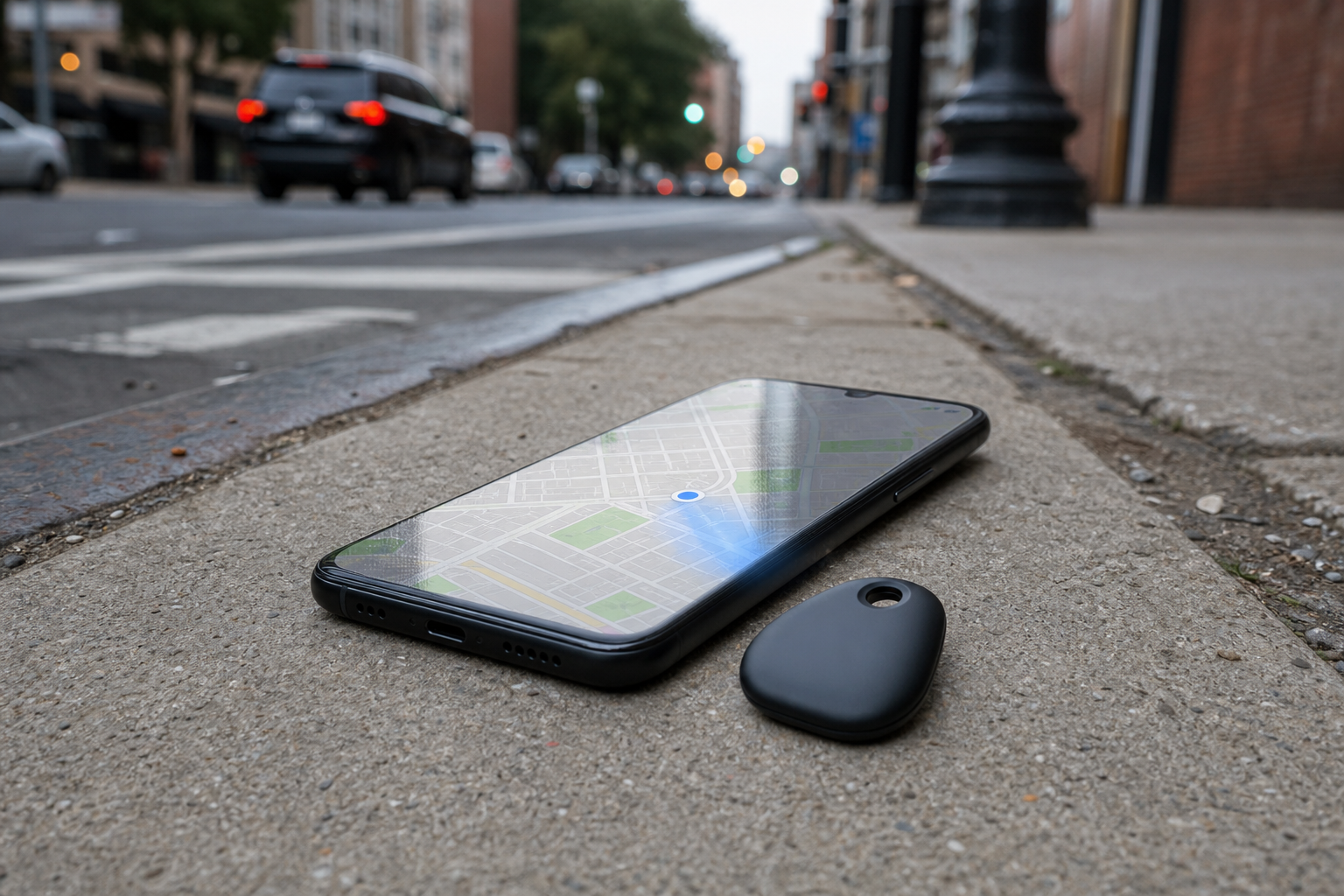
Learn which Android Find Hub settings help recover a lost, offline, or powered-off phone, including privacy trade-offs, Pixel limits, and troubleshooting steps.
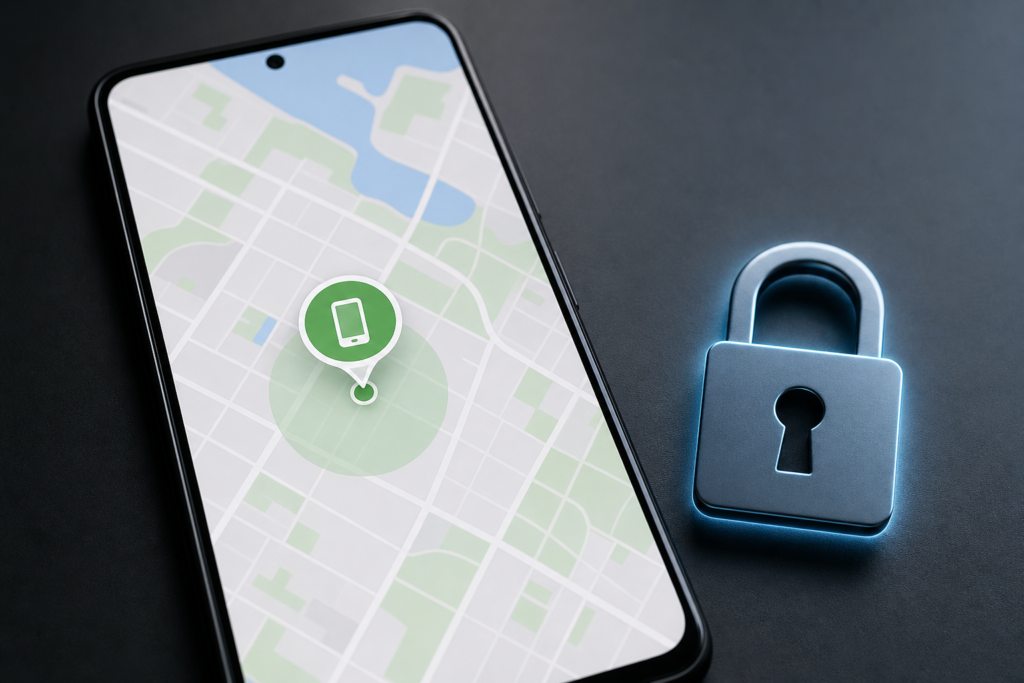
Android Find Hub can show your phone’s current location when it is online, or an encrypted recent location when it is offline. Depending on your settings and phone model, nearby Android devices may also help report where your lost phone was detected.
That does not mean every Android phone can be tracked after the battery dies. Power-off finding requires supported hardware, the right Find Hub setting, and Bluetooth and Location turned on before the phone shuts down. Google specifically documents this capability for supported devices such as the Pixel 8 series.
If your phone is already missing, open Find Hub on the web or use the Find Hub app on another Android device. Select the phone, check its last available location, then use Play sound, Mark as lost, or factory reset only when recovery is unlikely.
These settings are easiest to verify while you still have the phone. You’ll need access to the device, a Google Account signed in on its main profile, and a PIN, pattern, or password for the strongest offline-finding options.
Keep in mind that menu names can vary slightly between Pixel, Samsung Galaxy, Motorola, and other Android phones. Google says some setup steps require Android 14 or later.
Open Settings, tap Passwords, passkeys and accounts, and make sure the Google Account you expect to use for recovery is listed. On a shared tablet, only the owner can change some Find Hub settings.
Go to Settings > Location and turn on Use location. If Location is off, Find Hub may not be able to determine where the device was last seen.
Depending on the manufacturer and Android version, look under Settings > Security or Settings > Google > All services > Find Hub. Confirm that Allow device to be located is enabled.
A PIN, pattern, or password does more than lock the screen. It also helps protect the encrypted location information used by Find Hub’s offline network.
Open Settings > Google > All services > Find Hub > Find your offline devices. You may see four choices.
| Setting | What it does | Best for |
|---|---|---|
| Off | Stops storing encrypted recent locations and stops network participation. Online locating, securing, and erasing can still work when the phone is connected. | People who do not want offline-finding features. |
| Without network | Stores encrypted recent locations for your phone and supported connected accessories, but does not use nearby Android devices to locate them. | People who want a privacy-focused fallback for their own devices. |
| With network in busy places only | Uses the crowdsourced network in places such as airports and busy pedestrian areas, where many Android devices can detect a lost item. | People who want network help with a narrower exposure to remote-area detection. |
| With network everywhere | Uses the crowdsourced network in busy and remote areas. A single participating Android device may help report a detected item. | People who want the broadest chance of recovering a lost phone or tracker. |
For most people, With network everywhere is the practical choice if recovery matters more than limiting network participation. Google says the location reports are end-to-end encrypted, and the network uses Bluetooth to detect nearby items. Set a screen lock before choosing it so the network can help locate your own items.
Review the official Android Find Hub preparation settings
Sometimes. Google says supported phones, including the Pixel 8 series, can remain findable for several hours after being powered off or running out of battery. Google’s Pixel documentation describes at least 23 hours for applicable Pixel 8, Pixel 8 Pro, and Pixel 8a devices in certain countries.
This feature is conditional. Before shutdown, the phone must have the appropriate offline-finding option selected, and both Bluetooth and Location must be turned on. It is not a general Android feature that works on every Samsung Galaxy, Motorola, OnePlus, or older Pixel model.
If your phone is not supported for power-off finding, Find Hub may still show its last encrypted location from when it was online. That can help you retrace your steps, but it is not a live location.
Start with the simplest explanation: the phone may be powered off, out of mobile or Wi-Fi coverage, in airplane mode, damaged, or unable to communicate because its SIM was removed. A missing location does not prove that the phone has been moved.
If Find Hub shows an account-action warning or asks you to sync the recent location, open the notification on the affected Android device and complete the sign-in or screen-lock prompt. Then refresh the device list.
If the phone is in your hand but Find Hub cannot access its stored location, open the offline-finding setting, note the current choice, switch it to Off, and then select the previous option again. Follow any prompt for your screen lock. Google documents this as a troubleshooting step for location-sync problems.
Do not repeatedly guess the screen lock used to unlock encrypted recent-location data. If you cannot verify it, the safer option is to reset the offline-finding setup rather than risk losing access to the stored data.
Find Hub can also manage compatible Bluetooth tracker tags, Fast Pair accessories, and some headphones. Tracker tags can help with keys, luggage, bikes, and similar belongings, but Google says they should not be used to track people or stolen property.
“Without network” does not support using the broader Android network to find a tracker tag. If you want tracker recovery in busy or remote locations, choose one of the network settings and keep the tag charged. Ultra-wideband directional finding also depends on both the tag and phone supporting UWB.
The broader network is more useful, but it involves participation in a crowdsourced detection system. Google says detected locations are encrypted and that users receive the item’s detected location rather than identifying information about the Android device that reported it.
Contact your carrier if the phone may have been stolen, especially if you need the IMEI blocked or the mobile account suspended. You can view the IMEI in Find Hub by selecting the device and opening its settings, although some devices, such as the Pixel Tablet, do not have an IMEI.
Contact the manufacturer when Location or Find Hub settings are missing, Bluetooth behaves unexpectedly, or the phone cannot remain powered on. Gather the phone model, Android version, Google Account used on the device, last known location, and whether the phone was online when it disappeared.
A. Choose “With network everywhere” if you want the broadest crowdsourced recovery coverage. Use a PIN, pattern, or password, and keep Location and Bluetooth enabled. “With network in busy places only” is a narrower alternative.
A. Find Hub stores an encrypted recent location for offline recovery when the feature is enabled. This is different from Google Maps Timeline, which is a separate location-history feature. Find Hub is intended to provide the latest useful location, not a complete travel history.
A. The general offline network can help when a phone is offline, but Google’s documented power-off finding is limited to supported hardware. Do not assume that every Galaxy or Android model can be located after shutdown; check the phone manufacturer’s specifications and keep the offline-finding settings enabled beforehand.
A. A factory reset permanently deletes the phone’s data, and its location will no longer be available in Find Hub. Use this only after trying to recover or secure the device, because remote erasure can end your ability to locate it.