Welcome to KnowHow Daily!
Practical guides, money-saving tips, tech solutions, government benefits, and useful information for everyday life.
Welcome to KnowHow Daily!
Practical guides, money-saving tips, tech solutions, government benefits, and useful information for everyday life.


Learn what Windows 11 Backup saves, why OneDrive is not a complete backup, and which recovery option to use after a Windows problem or hardware failure.
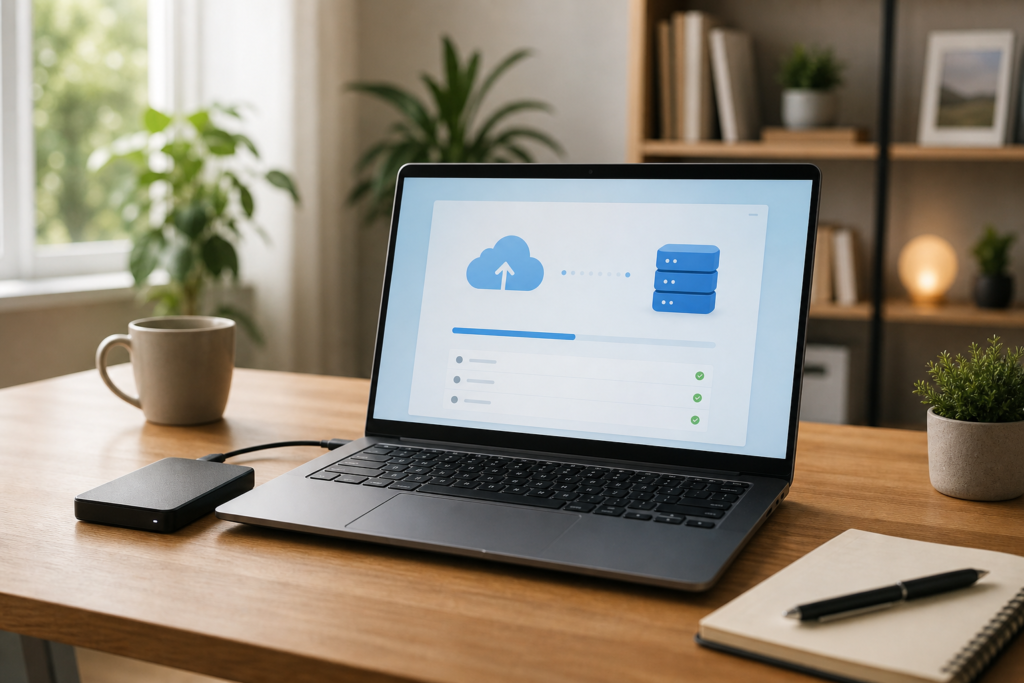
Windows 11 includes a built-in Windows Backup app that helps move your personal setup to a new PC or restore key preferences after a recovery. It can back up selected folders, Windows settings, Wi-Fi information, language preferences, personalization choices, and details about some installed apps.
The most important distinction is that Windows Backup is mainly a cloud-based settings and folder backup, not a complete image of your entire computer. It does not create a restorable copy of every program, system file, driver, and personal file on your hard drive.
For most people, the safest approach is to use Windows Backup alongside a separate backup of important files. Think of Windows Backup as a way to remember how your PC was set up, while an external drive or another backup service provides an additional copy of the data you cannot replace.
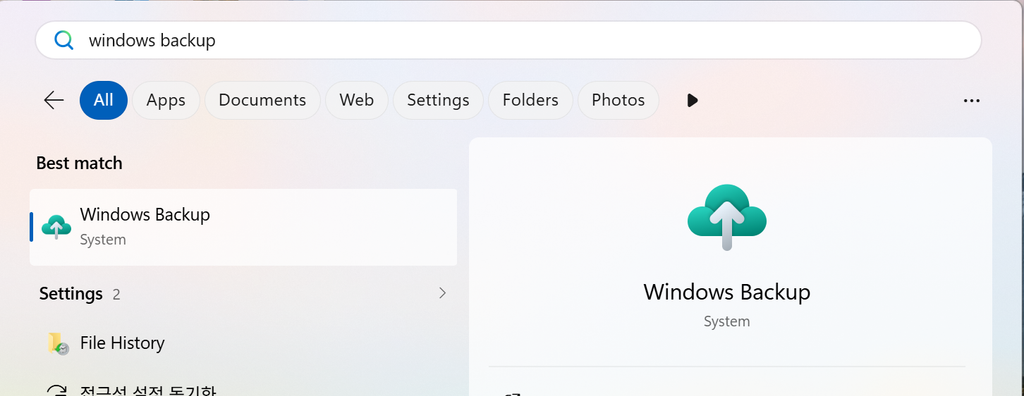
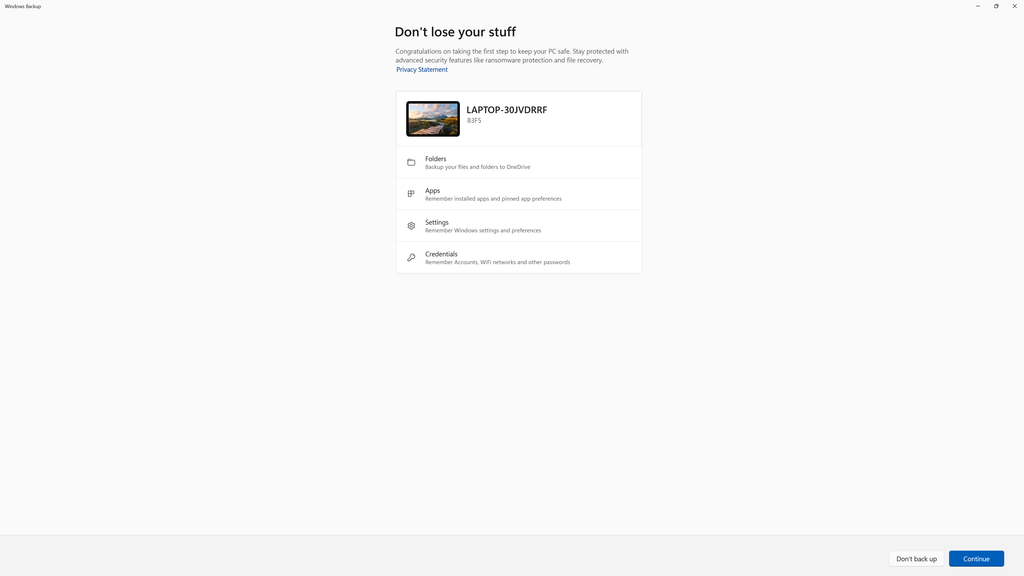
On a personal Windows 11 PC, open Settings > Accounts > Windows backup. You can also search for Windows Backup from the Start menu, and you will see Windows Backup app. Microsoft currently focuses the Windows Backup app on consumer devices signed in with a personal Microsoft account, such as an Outlook.com or Live.com account. Work and school accounts are not supported by this consumer backup experience.
If Windows is using a local account, you may first need to switch to a Microsoft account. Your backed-up information is associated with that account, so you will need to sign in with the same account when setting up or recovering another PC.
From Windows Backup, review each category instead of turning everything on automatically without checking it. The available options can include folder backup, installed app information, accessibility settings, accounts and Wi-Fi details, personalization, language preferences, and other Windows settings.
Open the official Windows Backup guide
Windows Backup can back up common user folders such as Desktop, Documents, Pictures, Videos, and Music to OneDrive. Select the folders you actually use, then confirm that the files have finished syncing before assuming they are protected.
This is where storage limits matter. A free Microsoft account includes 5 GB of shared cloud storage for OneDrive files and photos, Outlook.com attachments, and certain Microsoft 365 content. A large photo library or video collection can use that space quickly. Microsoft 365 Personal and Family subscriptions include more OneDrive storage, but the available amount depends on the subscription and account arrangement.
If OneDrive reports that you are out of space, Windows Backup may not finish backing up folders or some personalization settings. Freeing space, choosing fewer folders, or using additional storage may be necessary.
OneDrive makes files available across devices, but synchronization and backup are not identical. When a file inside a synced OneDrive folder is changed or deleted, that change can also appear in the cloud and on other connected devices.
That does not make OneDrive useless as a backup. It provides useful protection through the OneDrive Recycle Bin and, for eligible Microsoft 365 subscribers, broader OneDrive restoration tools and file version history. Still, you should not rely on synchronization as your only defense against accidental deletion, ransomware, a damaged account, or a failed hard drive.
A practical backup plan keeps at least one additional copy that is not continuously connected to the computer. For example, you might copy irreplaceable photos, tax documents, and personal projects to an external drive every week or month. Keep that drive disconnected when it is not being used so a malware infection cannot automatically reach it.
Review official OneDrive backup and recovery options
When you set up a new Windows PC or recover a supported device, signing in with the same Microsoft account can make your backed-up settings available again. Windows may offer to restore the previous setup, including selected preferences and app information.
Restoring does not necessarily reinstall every desktop program exactly as it was. Some apps may need to be downloaded again, and programs installed from outside the Microsoft Store may require their original installer, license, or sign-in. Files stored in OneDrive become available through OneDrive, but files that were never synced or backed up separately will not magically return.
Before a planned reset, confirm that important files are visible in OneDrive on the web or on another backup device. Checking the backup from a second location is more useful than simply seeing a green sync icon on the original PC.
Windows recovery tools are designed for different problems. Start with the least disruptive option that fits the situation.
| Problem | Usually appropriate first step | What it changes |
|---|---|---|
| A recent update caused the problem | Uninstall the update | Removes the selected update while generally keeping personal files and apps. |
| Windows is damaged but the PC still starts | Reinstall Windows using Windows Update, when available | Reinstalls the current Windows version while preserving files, apps, and settings. |
| The issue began after a recent system change | System Restore or Point-in-time restore | Rolls back system changes; the exact effect depends on the recovery feature and available restore point. |
| The PC is unstable and other options have failed | Reset this PC | Reinstalls Windows. You can choose to keep personal files or remove everything, but apps and settings are removed. |
| Windows will not start | Windows Recovery Environment tools | May provide Startup Repair, System Restore, reset options, or installation-media recovery. |
Windows 11 also includes newer recovery features on supported versions, including Point-in-time restore and Quick machine recovery. Availability depends on the Windows version, device, and account or management settings. These options are not a substitute for file backups.
Create a Windows recovery drive
Compare the official Windows recovery options
If you choose Settings > System > Recovery > Reset PC, Windows offers two main personal-data choices. Keep my files reinstalls Windows while preserving personal files, but it removes installed apps and resets settings. Remove everything deletes personal files, apps, and settings and is intended for a clean start or for preparing a device for another owner.
You may also be offered Cloud download or Local reinstall. Cloud download retrieves a fresh Windows copy from Microsoft and can help when local system files are corrupted, but it requires a reliable internet connection and additional download time. Local reinstall uses files already on the PC and may be faster, although those local files may not be suitable if the Windows installation itself is damaged.
Before resetting an encrypted PC, locate your BitLocker recovery key. You may also need it when using recovery tools from the Windows Recovery Environment. Do not interrupt a reset just because the screen stays black for a while; Microsoft warns that manually restarting during the process can cause the reset to fail.
Review Reset this PC instructions
Find your BitLocker recovery key
For most home users in the United States and Canada, the sensible rule is simple: turn on Windows Backup for settings and PC migration, use OneDrive for convenient file access, and maintain a separate copy of files that would be costly or impossible to replace.
A. No. Windows Backup can remember information about some apps and help you restore them during setup, but many desktop programs still need to be downloaded and installed again. Keep installers, license keys, and account details for software you rely on.
A. Microsoft’s consumer Windows Backup app is designed for personal Microsoft accounts. A work or school account may not work with this backup experience, especially when the device is managed by an organization. Contact your IT department for the organization’s backup and recovery process.
A. The deletion can sync to OneDrive and other connected devices, but the file may still be recoverable from the OneDrive Recycle Bin. Personal-account items are generally kept there for 30 days. Do not treat the Recycle Bin as a permanent backup, and avoid emptying it until you are certain the files are no longer needed.
A. Choose Keep my files only when you have already backed up important data and understand that apps and settings will be removed. It preserves personal files in many situations, but it is not a guarantee against every storage failure or recovery problem. A verified external or cloud copy is still necessary.