Welcome to KnowHow Daily!
Practical guides, money-saving tips, tech solutions, government benefits, and useful information for everyday life.
Welcome to KnowHow Daily!
Practical guides, money-saving tips, tech solutions, government benefits, and useful information for everyday life.

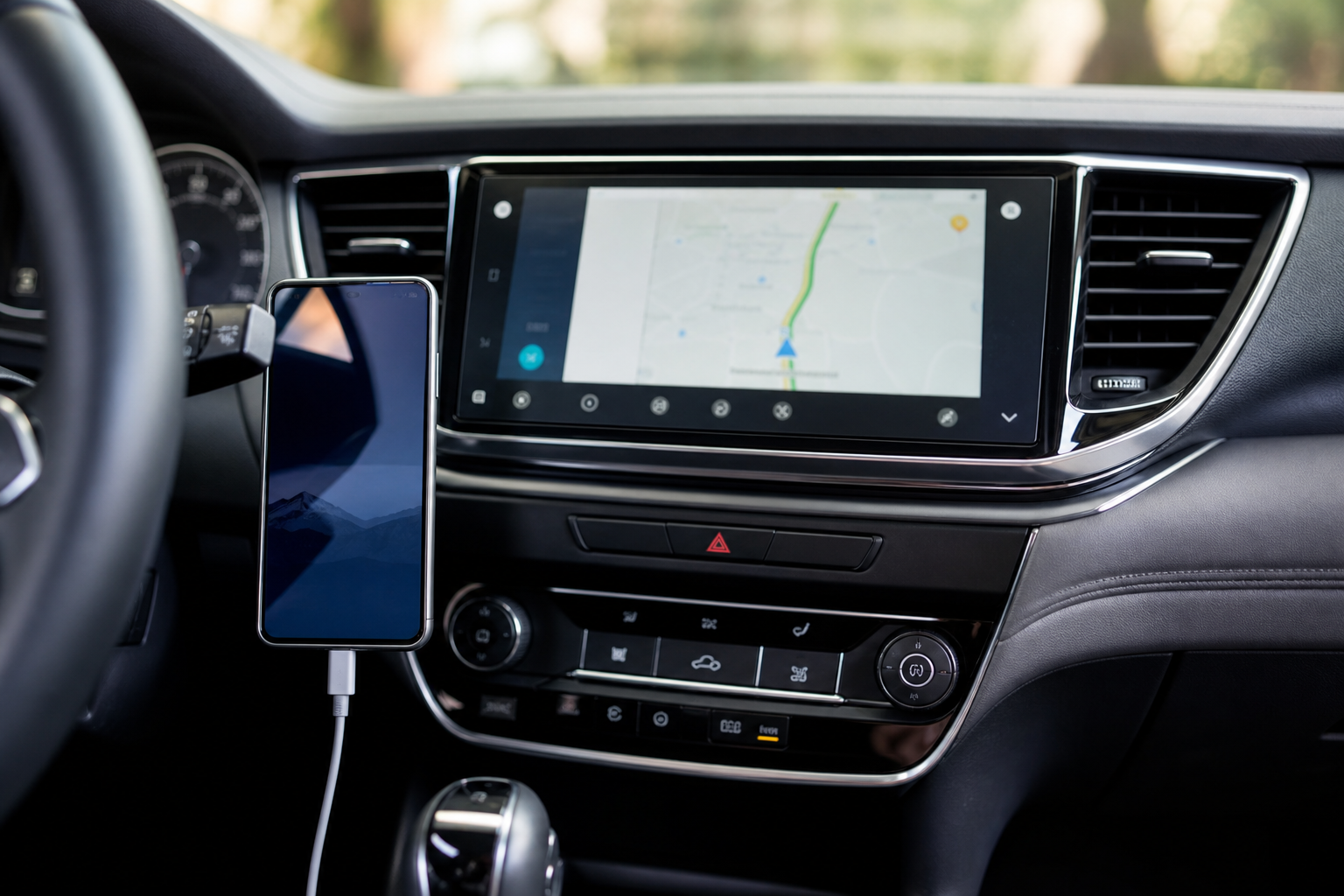
Android Auto keeps disconnecting or refusing to connect? Here is the latest Google fix, plus safe steps for wired and wireless connection problems.
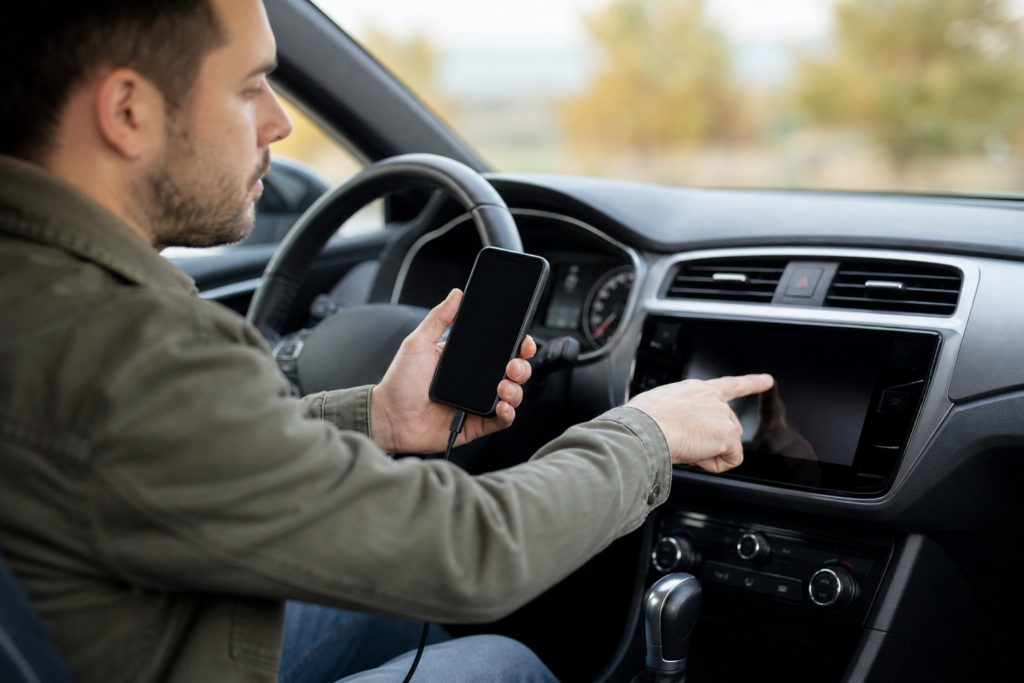
If Android Auto connects and then drops every few minutes, freezes while playing music, or repeatedly reconnects, update Android Auto before trying more disruptive fixes. In an August 18, 2026 response in the official Android Auto Community, the Android Auto team said a fix had been implemented and advised affected users to install version 17.4 or later.
Some users reported improvement earlier with the 17.3.662814 release, but Google’s later guidance points to 17.4 and above as the version range intended to address the recurring connection problem. As of September 7, 2026, newer releases are also appearing for some users, so install the newest stable version offered to your phone rather than relying on an older build.
This does not mean every connection failure is caused by the same bug. A damaged cable, unsupported vehicle, outdated head-unit firmware, Bluetooth pairing conflict, or phone-specific issue can produce very similar symptoms.
Update Android Auto from Google Play
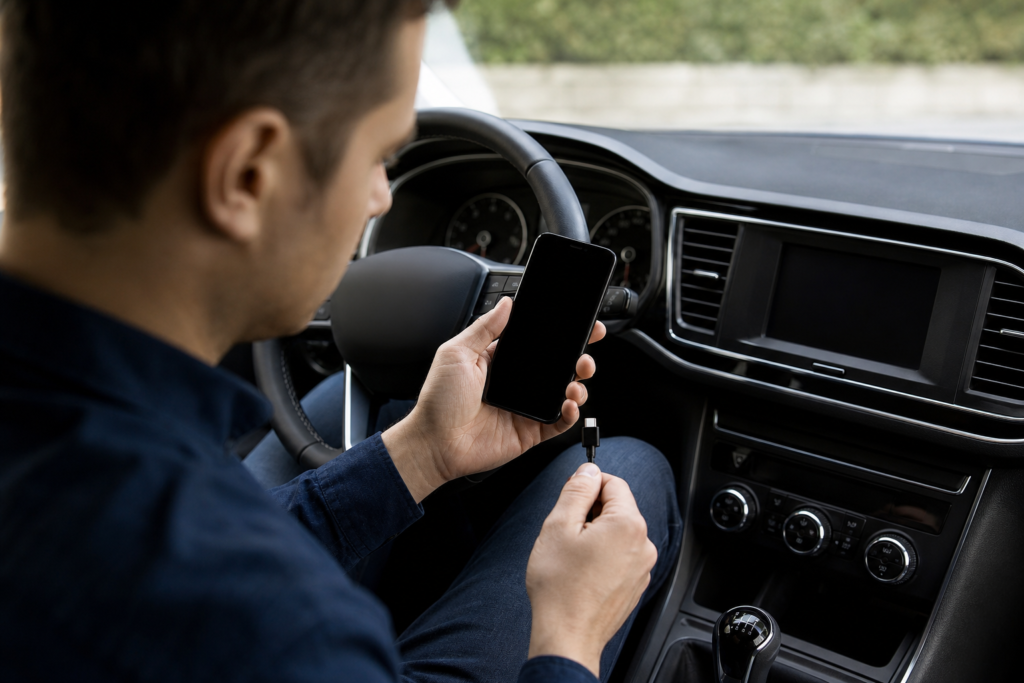
Do these checks while the car is parked. You may need to reconnect the phone after forgetting saved cars, so make sure you know how to pair your vehicle again. Avoid factory-resetting the car or phone as a first step; those actions erase settings without proving that the software bug is the cause.
Android Auto is built into current Android phones, so most users do not need to install a separate app manually. The Google Play listing is still useful for checking whether an update is available.
Turn the vehicle off completely, open and close the driver’s door if your car uses a delayed shutdown system, and wait a few minutes before starting it again. Restart the phone as well. This clears temporary Bluetooth, Wi-Fi, and infotainment processes without deleting personal data.
For wired Android Auto, use a short data cable, ideally less than 3 feet (1 meter) long. Avoid USB hubs, extension cables, loose adapters, and cables intended only for charging. If Android Auto worked previously and suddenly stopped, Google specifically recommends replacing the cable.
Try the cable that came with your phone when possible. A cable can continue charging normally while its data connection has become unreliable.
A USB port does not automatically mean that a vehicle supports Android Auto. Confirm that your exact vehicle trim or aftermarket receiver is listed as compatible. Wireless Android Auto has additional requirements, and a car that supports wired Android Auto may not support wireless projection.
Check official Android Auto vehicle compatibility
Put the vehicle in Park and turn on the infotainment system.
Install the latest Android Auto update available on the phone.
Plug the cable directly into the vehicle’s Android Auto-compatible USB port.
Unlock the phone and accept any permission or setup prompts.
Choose Android Auto on the car display if it does not open automatically.
Test the connection for at least 10 minutes, including navigation and audio playback. If it stays connected, the update or cable was probably the issue.
If the phone only charges, try another USB port if the vehicle has more than one. Some vehicles reserve specific ports for smartphone projection, while others provide charging-only ports.
Wireless Android Auto uses more than Bluetooth. During setup, the phone also relies on Wi-Fi and location services, so all three should be enabled.
On the phone, turn on Bluetooth, Wi-Fi, and Location.
Start the vehicle and leave the infotainment system on while the car is parked.
Open the phone’s Bluetooth settings and select the vehicle.
Use the vehicle’s voice-command or phone-pairing button to begin a new pairing.
Accept the Android Auto prompts on both screens.
Wait several seconds after Bluetooth pairing. Android Auto should start automatically, or you may need to tap its icon on the car display.
If wireless Android Auto keeps looping between connected and disconnected, test the phone with a wired connection if your vehicle supports it. A stable wired connection suggests that the problem is limited to wireless projection, the receiver, or the car’s firmware rather than the phone’s entire Android Auto installation.
This is a useful next step when Android Auto worked in one vehicle but fails in another, or when the phone was recently replaced.
Unplug the phone from the car.
Open Settings on the phone.
Tap Connected devices, Connection preferences, Android Auto, and Previously connected cars.
Open the menu in the upper-right corner and choose Forget all cars.
Restart the phone and vehicle, then complete the pairing process again.
For wireless connections, also remove the vehicle from the phone’s Bluetooth list and delete the phone from the car’s paired-device list before starting over. This prevents an old pairing record from interfering with the new setup.
Check whether Android Auto is enabled in the vehicle’s infotainment settings. For an aftermarket Pioneer, Kenwood, or similar receiver, look for a firmware update from the receiver manufacturer. Google’s app update cannot correct every head-unit compatibility problem.
Install the latest Android and Google Play system updates available for that phone. On some Android devices, battery-management settings can restrict background activity, although changing those settings is not a universal fix. Use them only if the manufacturer’s support instructions recommend it.
Test without a wireless adapter, if one is being used, and try a direct wired connection. If both wired and wireless modes fail at the same point after updating Android Auto, record the exact phone model, Android version, Android Auto version, car or receiver model, connection type, and approximate time before failure.
Google’s Android Auto known-issues information has listed device-specific connection problems for some Pixel and Samsung models. A general update may not resolve every model-specific issue, so check the current issue list before rolling back software or performing a factory reset.
Check current Android Auto known issues
Contact the vehicle manufacturer or receiver maker when multiple phones fail in the same car, the USB port is loose, the infotainment system reboots, or a firmware update is available. Contact phone support when the same phone fails in several compatible vehicles, Bluetooth fails outside Android Auto, or the problem began immediately after a system update.
When reporting the problem, include the phone model, Android version, Android Auto version, vehicle and receiver model, wired or wireless connection type, country, error message, and whether another phone works. Those details help separate an app regression from a cable, receiver, or vehicle-firmware problem.
Submit an official Android Auto bug report
Do not submit a bug report while driving. Reproduce the issue only when parked and follow Google’s reporting steps from a safe location.
A. Google’s Android Auto team said on August 18, 2026, that the fix should be available in version 17.4 and later. Install the newest stable version offered by Google Play because version availability can vary by device and rollout.
A. The cable may support charging but not reliable data transfer, or the vehicle port may be charging-only. Try a short data cable and the USB port designated for smartphone projection.
A. Usually no. Android Auto is integrated into many Android phones, and uninstalling updates or sideloading an older version can create additional compatibility and security problems. Update first, then test the cable, car firmware, and saved pairings.
A. Yes. Wireless Android Auto requires compatible phone, vehicle or receiver, Bluetooth, Wi-Fi, and location setup. Wired support does not guarantee wireless support.