Welcome to KnowHow Daily!
Practical guides, money-saving tips, tech solutions, government benefits, and useful information for everyday life.
Welcome to KnowHow Daily!
Practical guides, money-saving tips, tech solutions, government benefits, and useful information for everyday life.

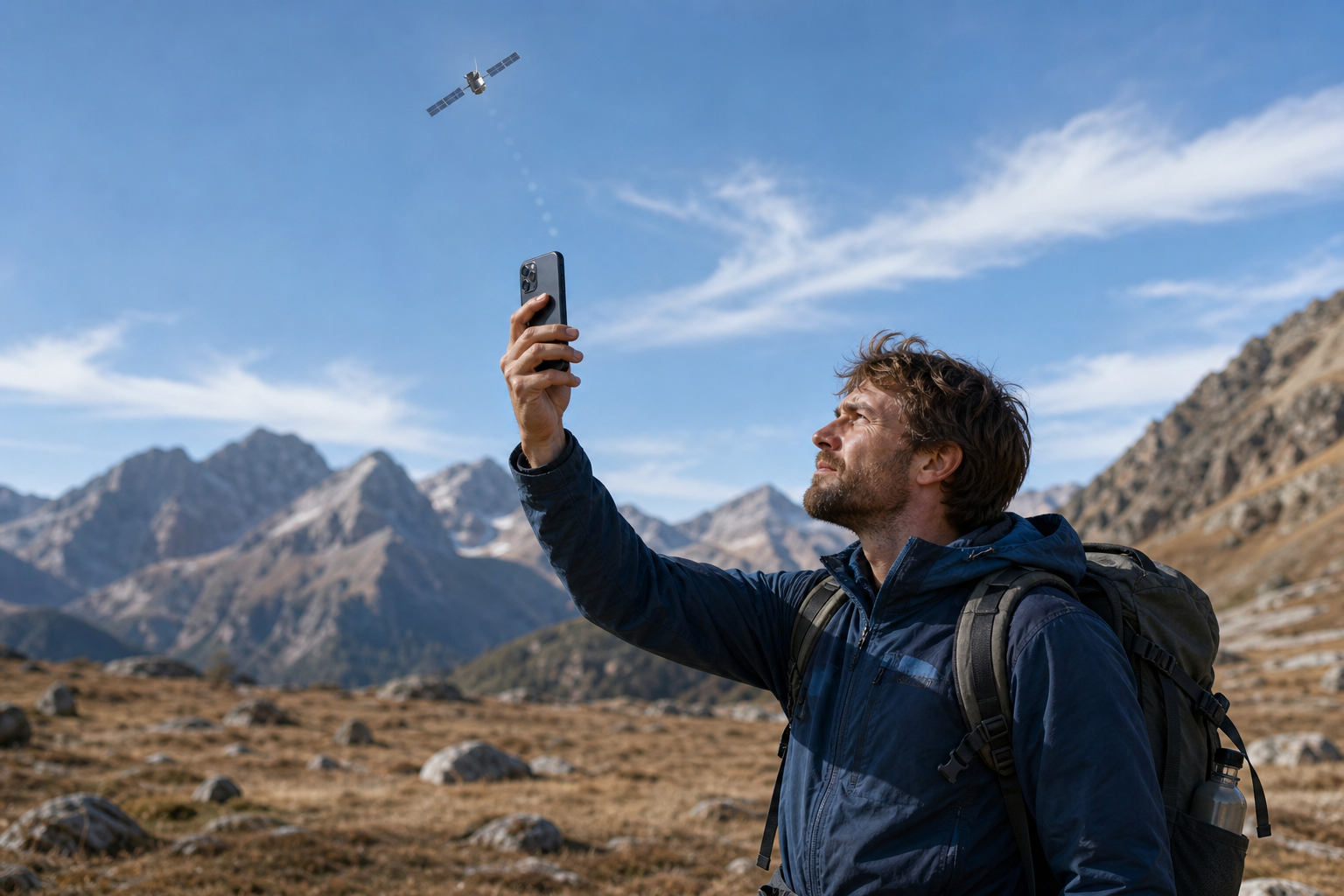
Learn how iPhone Emergency SOS via satellite works in the US and Canada, which iPhones support it, how to prepare, and why you should try the demo before traveling off-grid.
iPhone Emergency SOS via satellite lets you text emergency services when you’re outside cellular and Wi-Fi coverage. In the United States and Canada, the feature is designed to connect you with 911 when an ordinary emergency call or text can’t get through.
It’s available on every iPhone 14 or later, including standard, Plus, Pro, and Pro Max models. Apple lists iOS 16.1 or later as the minimum requirement for the United States and Canada, although keeping your phone on the latest available iOS version is the better preparation step.
The key distinction is that this isn’t a satellite phone or a general-purpose internet connection. You don’t make a normal voice call through the satellite network. Instead, your iPhone guides you through a short emergency questionnaire and sends the information as a text conversation to emergency services or an emergency relay center.
Open Apple’s official Emergency SOS via satellite instructionsIf you’re in danger, try calling 911 first. Even when your own carrier has no signal, your iPhone may still be able to place an emergency call through another available cellular network. If the call doesn’t connect, the iPhone can offer an option to text emergency services via satellite.
You can also open the Messages app, start a message addressed to 911 or SOS, and choose the emergency-services option when it appears. The exact prompts can vary depending on your location, iOS version, and whether your iPhone detects that you’re outside normal coverage.
After you tap the emergency option, your iPhone asks questions intended to give responders a useful first picture of the situation. Depending on the emergency, the information sent can include:
You can also choose whether to share the information sent to emergency services with your emergency contacts. Keep the conversation open and follow any questions from the responder. If you accidentally start an emergency session and no longer need help, Apple says you should wait for a responder to answer and explain the situation rather than simply ending the session.
Check that you have an iPhone 14 or later. Emergency SOS via satellite is not available on older iPhone models, even if they are running a newer version of iOS.
For trips in the United States or Canada, Apple lists iOS 16.1 or later as the minimum software requirement. In practice, install the latest iOS update available for your phone before you leave. Updates can improve the interface, compatibility, and other emergency features.
Your Medical ID can provide responders with useful information such as allergies, medical conditions, medications, blood type, and emergency contacts. Review it before a trip instead of assuming the information is still accurate.
Open the Health app, tap your profile picture, choose Medical ID, and select Get Started or Edit. Add at least one emergency contact and confirm that the information you want responders to see is correct. The Medical ID settings also include options for showing the information when your iPhone is locked and sharing it during an emergency call.
Set up your Medical ID and emergency contactsApple includes a demo so you can learn the connection process without contacting emergency services. Go to Settings, tap Emergency SOS, scroll down, and tap Try Demo. The demo shows how to hold and point the phone while following the satellite’s position on screen.
Use the demo before your trip, preferably outdoors. It won’t reproduce every condition you might encounter, but it can prevent a common problem: trying to figure out the interface for the first time while injured, frightened, or under pressure.
Satellite messaging still depends on your iPhone having power. Charge the phone before leaving and bring a reliable power bank if you’ll be away for more than a few hours. Cold temperatures can reduce battery life, so keeping the phone protected from extreme cold is especially useful for winter travel.
Your iPhone needs a direct enough view of the sky and horizon to connect with a satellite. You don’t need to hold it above your head or extend your arm. Hold it naturally and follow the on-screen guidance to move in the direction shown.
Open terrain is the easiest environment for a connection. Trees, thick foliage, steep mountains, narrow canyons, buildings, and other tall obstructions can weaken or block the signal. Apple notes that a message may take around 30 seconds in ideal conditions and longer when light or medium foliage is in the way. Heavy foliage or surrounding obstructions may prevent a connection altogether.
This is why “no cell service” does not automatically mean “satellite will work.” A remote beach, open field, or broad mountain clearing may be more favorable than a heavily wooded campsite only a short distance away.
| Situation | What it means |
|---|---|
| Outside with open sky | Best chance of connecting and sending messages |
| Under light or medium tree cover | Connection may take longer |
| Under dense foliage | Connection may fail |
| Inside a building or vehicle | Move outside before trying |
| In a canyon or beside a steep slope | The sky view may be blocked |
This feature is a valuable backup, but it shouldn’t be treated as a complete off-grid safety plan. It doesn’t guarantee a connection, instant delivery, or immediate rescue. Satellite messaging is slower than cellular communication, and the responder may need additional information before help can be dispatched.
It also doesn’t replace basic preparation. Tell someone where you’re going, share your planned route, check local weather and access conditions, and carry appropriate supplies. For hiking, boating, backcountry driving, or extended camping, consider whether a dedicated satellite messenger or personal locator beacon is appropriate for your activity.
Messages via satellite and Emergency SOS via satellite are different features. Messages via satellite can help you contact friends and family in supported regions, but Apple specifically says to use Emergency SOS via satellite when you need emergency help. Don’t send an ordinary message to a friend and assume it will function as an emergency call.
In both the United States and Canada, Emergency SOS via satellite is available on iPhone 14 and later when you’re outside cellular and Wi-Fi coverage. The emergency number used for the feature is 911.
The service is intended for supported regions and may be affected by local regulations, network availability, your iPhone’s purchase region, and the physical environment. Apple says satellite connectivity isn’t offered on iPhone models purchased in certain regions, including mainland China, Russia, and several other listed markets. If you’re traveling internationally with an imported iPhone, check the model’s purchase region before relying on the feature.
Apple currently describes Emergency SOS via satellite as free for two years after activation of an iPhone 14 or later. Because service terms and regional availability can change, review Apple’s current availability information before a major trip.
The simplest decision rule is this: if you’re going somewhere without dependable cellular coverage, prepare Emergency SOS before you leave—not after the signal disappears. The demo, Medical ID, emergency contacts, and a charged phone take only a few minutes to check, but they can make the feature much easier to use when every second and every clear patch of sky matters.
A. No. Apple’s Emergency SOS via satellite requires an iPhone 14 or later. An iPhone 13 or older cannot use this Apple satellite emergency feature.
A. You should move outdoors. The iPhone needs a clear enough view of the sky and horizon, and buildings, vehicles, roofs, and other obstructions can prevent a connection.
A. Emergency SOS via satellite is designed for situations where cellular and Wi-Fi coverage are unavailable, but your iPhone still needs to be a supported model with compatible software. Apple’s satellite features can also depend on regional availability and the iPhone’s purchase region.
A. Not every accident triggers an automatic emergency contact. On supported iPhones, Crash Detection may attempt to contact emergency services after a severe crash if you’re unresponsive and outside cellular and Wi-Fi coverage, where the feature is available. You should still call or text emergency services yourself when you can.
A. Yes. Use the Try Demo option under Settings > Emergency SOS. The demo teaches the connection process and does not contact emergency services.