Welcome to KnowHow Daily!
Practical guides, money-saving tips, tech solutions, government benefits, and useful information for everyday life.
Welcome to KnowHow Daily!
Practical guides, money-saving tips, tech solutions, government benefits, and useful information for everyday life.

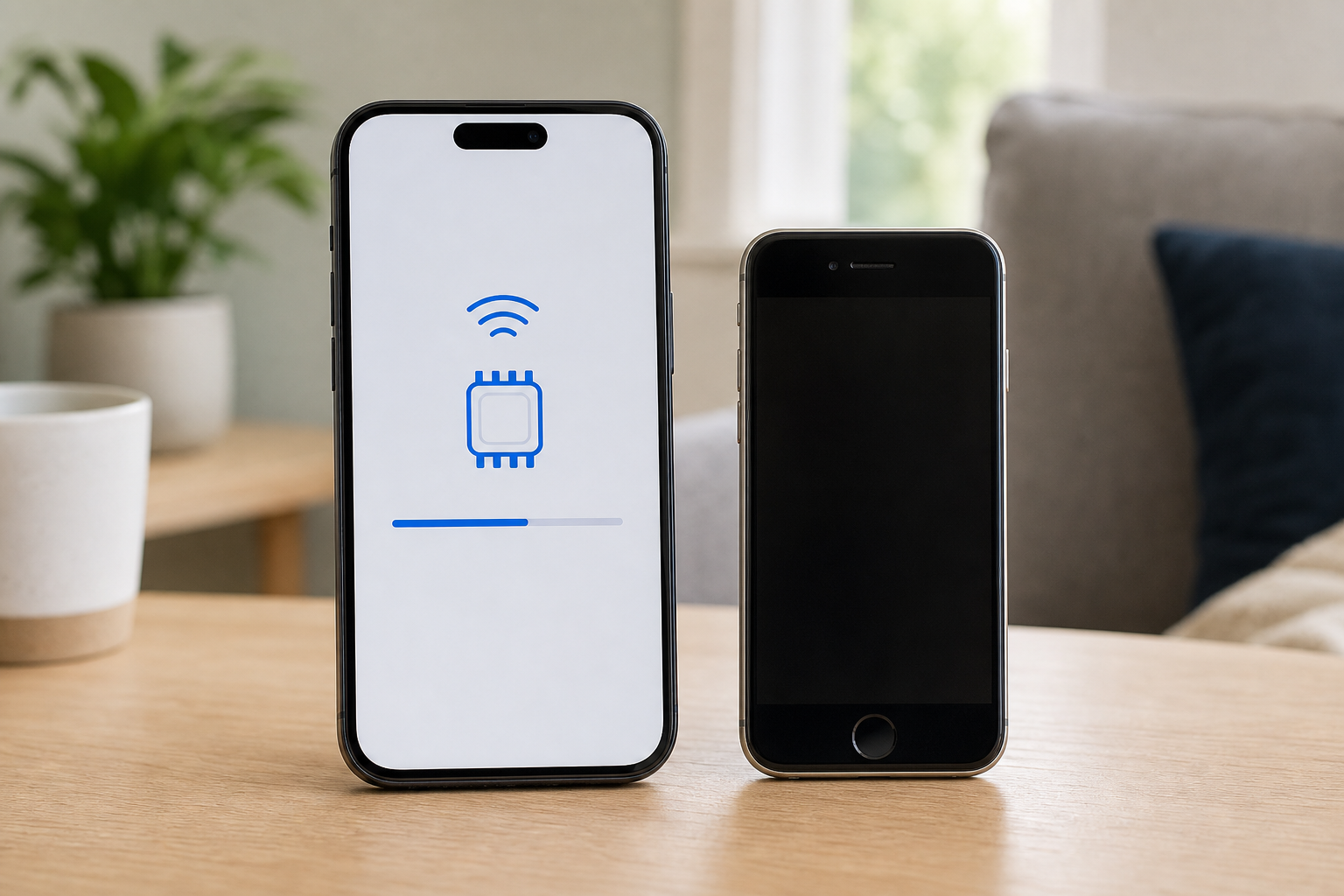
Moving to a new iPhone, Samsung Galaxy, or Pixel? Learn the safest ways to transfer your Rogers eSIM, use MyRogers, scan a voucher, and fix verification problems.
When you upgrade to a new iPhone, Samsung Galaxy, Google Pixel, or another supported phone, your Rogers service usually moves by activating a new eSIM profile on the replacement device. The phone number and wireless plan stay on your Rogers account, but the active SIM profile changes.
Keep both phones nearby, charge them, connect the new phone to Wi-Fi, and make sure you can sign in to MyRogers. Do not erase, trade in, or factory-reset the old phone until you have tested calling, texting, and mobile data on the new one.
Your new phone must support eSIM, and some models or software versions may show slightly different menu names. Rogers supports several routes: device setup, the MyRogers app, Rogers.com, and an eSIM voucher.
Open the official Rogers eSIM setup and transfer guide
If the old phone is lost, stolen, or damaged and you cannot receive texts, skip the normal online transfer route. Rogers says you need to visit a Rogers Store to activate the eSIM.
This is usually the smoothest method when the new phone detects the Rogers line automatically. Start the new phone’s setup with the old phone nearby, follow the data-transfer prompts, and look for an option to transfer or activate the mobile plan.
After the number activates on the new iPhone, the old iPhone’s Rogers eSIM normally stops working. That is expected. If the cellular setup option does not appear, use the Rogers.com method below.
Samsung notes that menus and carrier support can vary by model and software version. If Rogers does not appear as an available transfer option, use MyRogers or Rogers.com instead.
On supported Pixel phones, you can also try Settings > Network & internet > SIMs > Add SIM > Transfer SIM from another device. Automatic transfer generally requires Android 12 or later, current Google Play services, and a screen lock on both devices.
Use this method when the new phone is already set up or the built-in transfer option does not appear. You will need the new phone for the QR-code scan and, in many cases, the old phone to receive a verification text.
Use the official Rogers eSIM activation instructions
Once the restart is complete, test mobile data with Wi-Fi turned off. Then make a call and send an SMS message. If all three work, the Rogers eSIM transfer is complete.
An eSIM voucher is useful when Rogers has provided a QR code and a new eSIM number. The voucher method still normally requires account verification.
Do not share a voucher QR code or its 20-digit number. Treat it like a SIM credential and keep it private.
If the old phone or SIM is lost, damaged, or unavailable, the standard online process may stop at text verification. Rogers specifically directs customers in this situation to visit a Rogers Store for eSIM activation. Bring government-issued identification and the new phone if possible.
Find a Rogers Store for eSIM activation
Confirm that the eSIM appears under the phone’s cellular or SIM settings and that the Rogers line is turned on. Connect to Wi-Fi, restart the phone, and turn Airplane Mode on for a few seconds before turning it off again.
On iPhone, check Settings > General > About for a carrier-settings update. On Samsung, check Settings > Connections > SIM manager. On Pixel, open Settings > Network & internet > SIMs.
Display the QR code on a second screen rather than trying to scan it from the same phone. Increase the screen brightness, clean the camera lens, and keep the entire code inside the camera frame. If the code has expired or has already been used, return to the Rogers activation process and request a new eSIM profile rather than repeatedly scanning the old one.
A short delay can happen while activation completes. Restart both devices and check again. If both phones continue to show the Rogers line after the transfer, do not delete the old eSIM manually yet; contact Rogers so the account can be checked safely.
Contact Rogers if the transfer fails after a second attempt, the number disappears from your account, you see an activation or identity-verification error, or the phone reports that it is carrier-locked or not eSIM-compatible. If the phone cannot connect to any network, has physical damage, or cannot read its EID, the problem may be hardware-related rather than a Rogers account issue.
Before contacting support, note the exact error message and gather your Rogers mobile number, account login or PIN, phone model, IMEI, and EID. Avoid factory-resetting the new phone unless support or the manufacturer specifically tells you to do so.
A. No. The number and wireless plan remain on your Rogers account. The transfer changes which phone contains the active SIM profile.
A. You may be able to use Rogers.com or MyRogers if you can still receive the required verification text. If you cannot receive that text because the SIM or phone is unavailable, Rogers says to visit a Rogers Store for activation.
A. No. Leave the old eSIM in place until the new phone is activated and you have tested calls, texts, and mobile data. The transfer process normally deactivates the old profile when the new one becomes active.
A. The built-in transfer options depend on the phone models, software versions, and carrier support. If the iPhone does not offer a compatible transfer option, use Rogers’ MyRogers or Rogers.com eSIM activation process instead.
A. Confirm that the new phone works on Rogers first, back up anything you still need, sign out of your accounts, and then erase the old phone before selling, trading in, or giving it away.