Welcome to KnowHow Daily!
Practical guides, money-saving tips, tech solutions, government benefits, and useful information for everyday life.
Welcome to KnowHow Daily!
Practical guides, money-saving tips, tech solutions, government benefits, and useful information for everyday life.

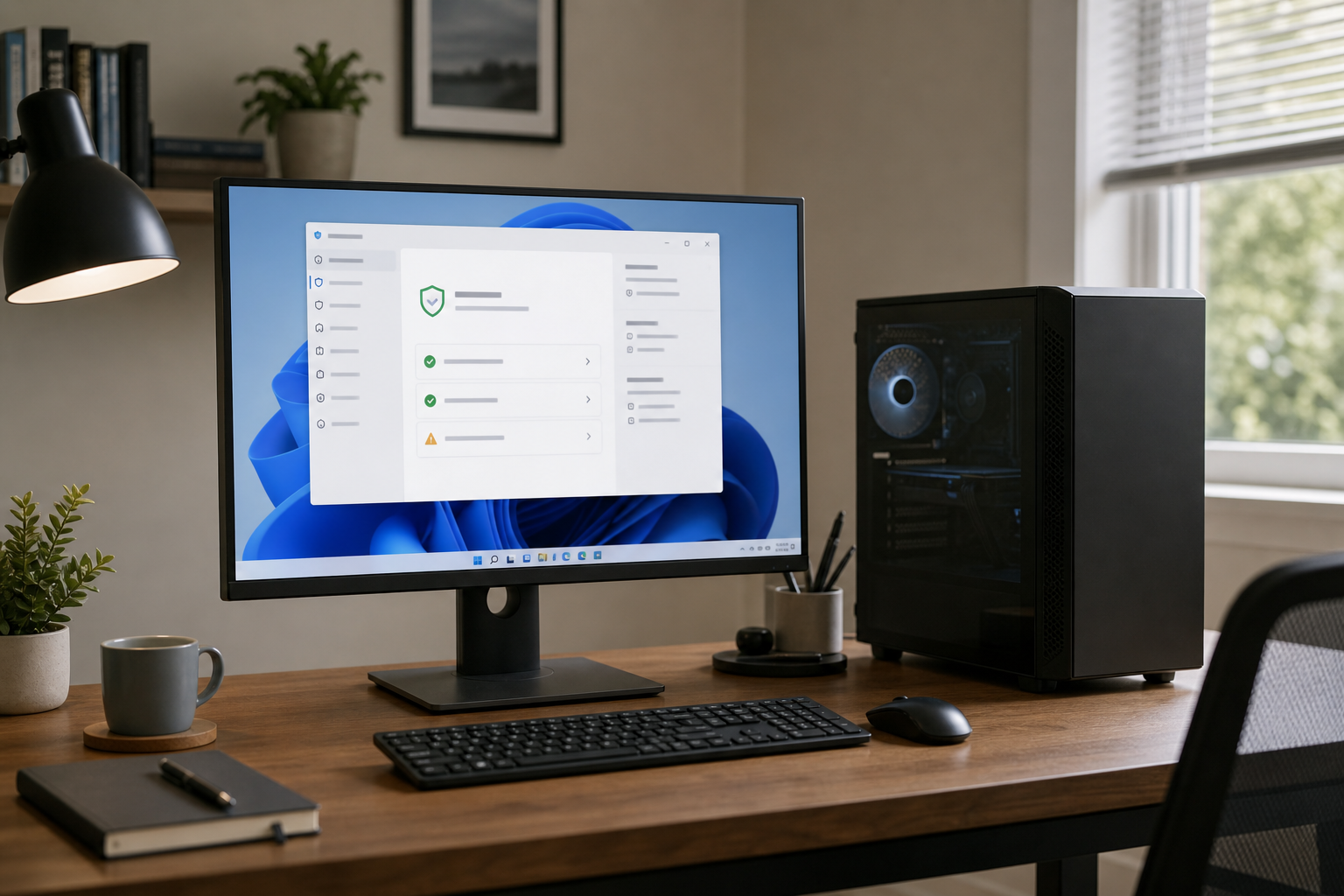
Learn how to check Windows 11 driver compatibility, identify blocked .sys files, verify virtualization readiness, and safely enable Memory Integrity.
On a Windows 11 home or small-office PC, the safest approach is to identify compatibility problems first and enable Memory Integrity second. The feature is also called Hypervisor-protected Code Integrity, or HVCI. It uses hardware virtualization to isolate part of Windows and help prevent malicious or unsafe kernel-level code from running.
These steps apply to current Windows 11 installations where the Windows Security app includes Device security and Core isolation details. The wording can vary slightly by Windows 11 release, but the diagnostic path is generally the same.
Memory Integrity may already be enabled on a clean Windows 11 installation or a secured-core PC. If it is off, that does not automatically mean your computer is infected or unsafe. It may simply have an older driver, unsupported hardware, or virtualization disabled in firmware.
Create a current backup of important files before changing firmware settings or removing hardware software. If your PC uses BitLocker or another form of device encryption, make sure you can access the recovery key before making major security or UEFI changes.
Find your BitLocker recovery key
Do not manually delete a driver file from C:WindowsSystem32drivers. A .sys file may belong to a storage controller, graphics component, security tool, VPN, printer, phone utility, or other software. Removing it directly can leave Windows or the related device unusable.
If the incompatible driver controls storage, disk encryption, networking, or boot hardware, stop before uninstalling it and check with the PC or component manufacturer.
Start with the screen that is designed to identify the conflict. Open Windows Security, select Device security, choose Core isolation details, and look at Memory integrity.
If Windows reports incompatible drivers, select the option to review them. Record the exact file name, publisher, and any path or driver details shown. A name such as example.sys is useful, but the publisher and the software or device associated with it are what help you decide whether an update or removal is appropriate.
If no driver is listed, the problem may be a firmware or hardware requirement rather than a specific driver.
Open Microsoft’s Device Security and Core isolation guidance
Memory Integrity depends on hardware virtualization being enabled in your PC’s UEFI or BIOS. You do not normally need to change this setting just to inspect your system.
Press Windows key + R, enter msinfo32, and press Enter. In System Summary, review entries such as:
If virtualization-based security is already running and Hypervisor-enforced Code Integrity appears under the running services, Memory Integrity is already active or being enforced by another Windows security configuration.
If virtualization is disabled, the exact firmware label depends on the computer maker. It may be called Intel VT-x, Intel Virtualization Technology, AMD SVM, or CPU virtualization. Use the manufacturer’s documentation for the correct UEFI path rather than changing unrelated firmware options.
Secure Boot is a separate setting. Do not turn it off as a routine troubleshooting step. It can affect device encryption, boot security, and other Windows protections.
Review Microsoft’s Memory Integrity and virtualization requirements
Once you have the driver name, update it through the least disruptive source first. In Windows 11, open Settings > Windows Update > Advanced options > Optional updates. If driver updates are listed, install the one that matches the affected hardware, then restart the PC.
Optional driver updates are not installed automatically, so this check is worth doing even when Windows says the system is up to date. Windows Update may not have a newer package, especially for older printers, specialty hardware, third-party security tools, or discontinued utilities.
If Windows Update has nothing suitable, visit the support page for the PC, motherboard, or device manufacturer. Search using the exact model number and the driver’s publisher. Prefer a current Windows 11 driver from the manufacturer over a generic download site.
After installing the update, restart Windows and return to Windows Security > Device security > Core isolation details. If the incompatible-driver warning is gone, you can try enabling Memory Integrity and restart again to test it.
Check Microsoft’s Windows Update driver instructions
Windows records driver-loading and code-integrity events in Event Viewer. This is useful when the Windows Security page names a file but does not explain what it belongs to, or when Memory Integrity fails without displaying a clear driver list.
eventvwr.msc, and press Enter.These entries can confirm that Windows blocked a driver because of signing or compatibility requirements. They do not always identify the consumer-facing application clearly, so use the publisher, file location, and installation date together when tracing it.
View Microsoft’s Code Integrity event log instructions
Use the result of your checks to choose the least risky next step:
| What you find | Best next step |
|---|---|
| A newer driver is available | Install it, restart, and check Core isolation again. |
| The driver belongs to an unused app or device | Uninstall the app from Settings > Apps > Installed apps, or remove the unused device through Device Manager. |
| The driver belongs to hardware you still need | Keep the hardware connected, contact the manufacturer, and look for a Windows 11 and HVCI-compatible driver. |
| No update exists and the driver is essential | Leave Memory Integrity off temporarily rather than forcing the setting or deleting the driver file. |
| The problem appears to be firmware or virtualization | Check the PC maker’s UEFI instructions and confirm that virtualization is supported and enabled. |
When removing a device driver through Device Manager, use the device’s normal uninstall option and select Attempt to remove the driver for this device only when you are certain the hardware is no longer needed and Windows offers that choice. Restart afterward and confirm that the device or application no longer depends on the driver.
When Windows Security no longer reports an incompatible driver, open Windows Security > Device security > Core isolation details and switch Memory integrity to On. Restart when Windows asks.
After the restart, check the same page again. You can also open msinfo32 and review the virtualization-based security entries. Test the hardware or software associated with the old warning, including printers, VPNs, virtual machines, audio tools, game accessories, and security software.
For a home PC, enable Memory Integrity through Windows Security rather than using registry commands or mandatory policy settings. Microsoft documents more forceful deployment methods for managed environments, but they are unnecessary for ordinary troubleshooting and can make recovery more complicated.
Read Microsoft’s Memory Integrity recovery guidance
If Windows becomes unstable immediately after enabling the feature, use Windows Recovery Environment rather than repeatedly forcing normal boots. A PC that cannot start normally, shows repeated blue screens, or loses access to a storage device needs a more careful recovery process.
Open Microsoft’s Windows Recovery Environment guidance
Do not use UEFI lock on a personal troubleshooting attempt unless you understand how to reverse it. Microsoft notes that systems configured with UEFI lock may require Secure Boot changes before certain recovery steps can be completed.
If the issue continues after a driver update or removal, gather the PC model, Windows 11 version, exact driver file, publisher, Code Integrity event details, and the name of the application or hardware involved. That information will give the manufacturer or a qualified technician something concrete to investigate.
Contact the PC or component manufacturer when the blocked driver belongs to storage, firmware, networking, encryption, or a device you cannot replace. Professional help is also appropriate if the system cannot boot, the driver is tied to a RAID or disk controller, or Windows Security lists several unknown drivers at once.
For most home PCs, the practical decision is straightforward: update the driver if a trusted source provides a compatible version, remove the software or hardware only when it is no longer needed, and leave Memory Integrity off temporarily when the driver is essential and no supported update exists.
A. No. Microsoft says the blocked driver is often legitimate but may use an older design, lack current signing, or fail compatibility requirements. Treat it as a compatibility and security issue, not proof of an infection.
A. You should not delete the file manually. First identify the application or device that installed it, then update or uninstall that software through its normal uninstaller or remove an unused device through Device Manager.
A. The cause may be disabled hardware virtualization, unsupported firmware, Secure Boot or other platform requirements, or a compatibility event that is recorded only in Code Integrity logs. Check msinfo32 and Event Viewer before changing drivers.
A. No. Secure Boot should remain enabled unless a documented recovery procedure or qualified technician tells you otherwise. Disabling it can reduce boot protection and may affect device encryption or recovery.
A. It can be a reasonable temporary choice if the driver controls hardware or software you still need, but it reduces protection against certain kernel-level attacks. Keep Windows and security software updated, contact the manufacturer, and revisit the setting when a compatible driver becomes available.