Welcome to KnowHow Daily!
Practical guides, money-saving tips, tech solutions, government benefits, and useful information for everyday life.
Welcome to KnowHow Daily!
Practical guides, money-saving tips, tech solutions, government benefits, and useful information for everyday life.

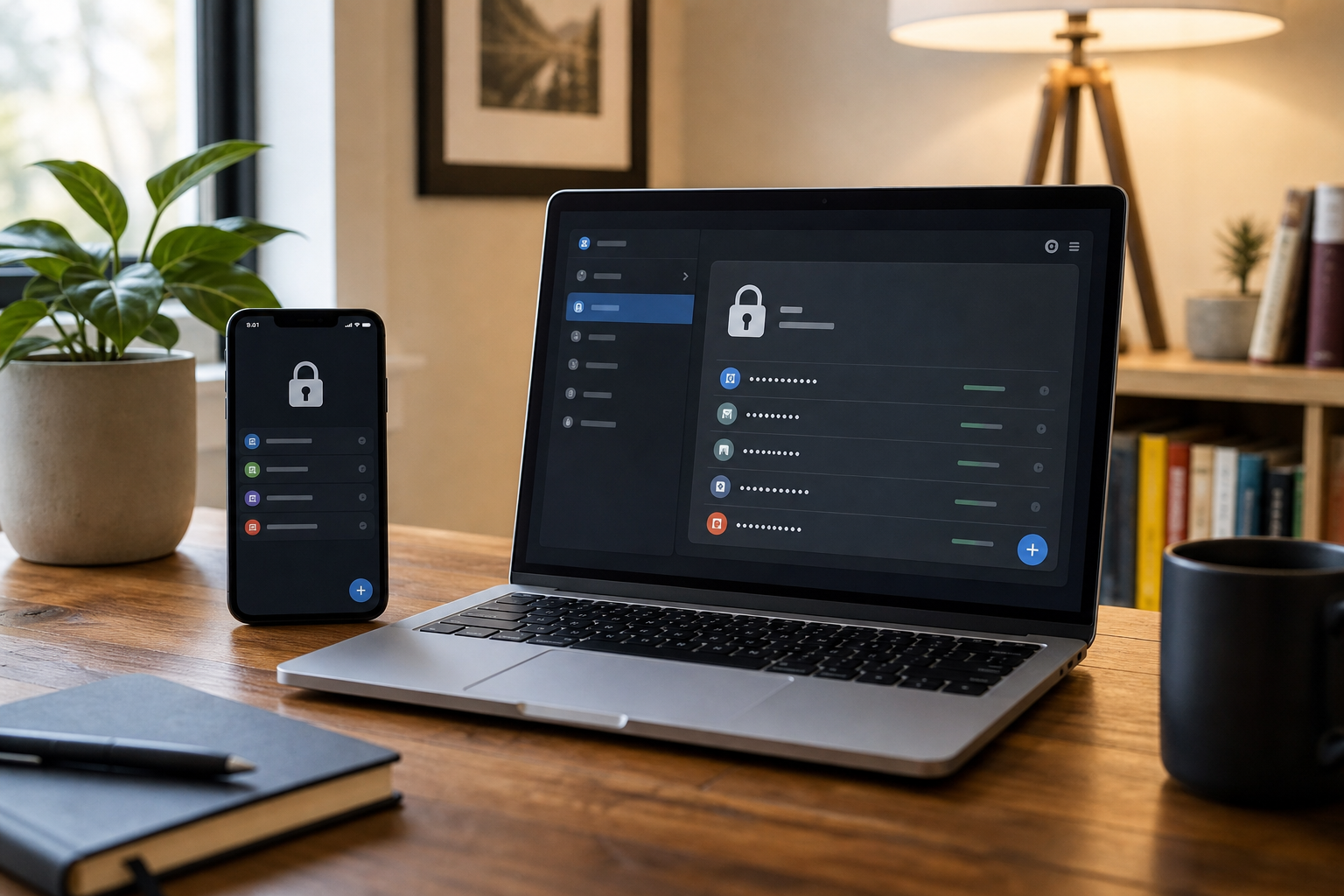
Learn how to choose and set up a password manager, compare cloud sync and built-in tools, move your accounts safely, and protect your vault.
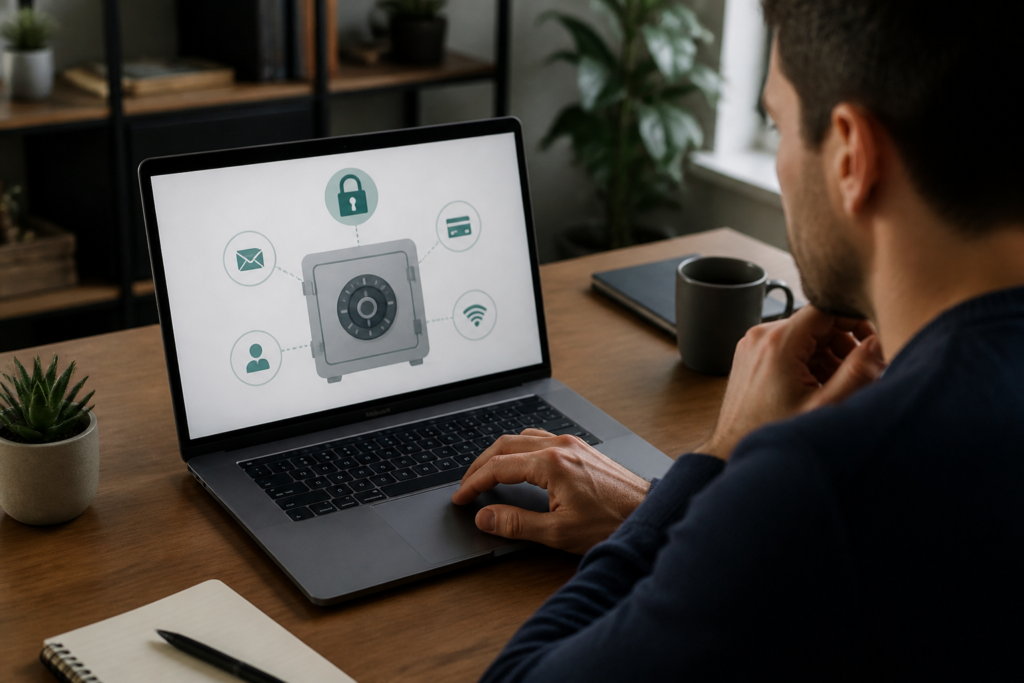
A password manager stores your login details in an encrypted vault and fills them into websites and apps when you need them. It can also generate long, random passwords, warn you about reused or compromised credentials, store passkeys, and keep secure notes or payment information.
The main reason to use one is simple: you can give every account its own password without trying to remember dozens of them. If one website is breached, attackers are less likely to use that stolen password to access your email, banking, shopping, or social accounts.
The distinction that matters most is whether the manager fits your whole device setup. A built-in option such as Apple Passwords, Google Password Manager, or Microsoft Password Manager can be a sensible choice if you stay mostly inside one ecosystem. A standalone manager may be more flexible if your household uses a mix of iPhone, Android, Windows, Mac, Linux, and several browsers.

Before comparing features, list the devices and browsers that need access. Include your phone, personal computer, work computer if permitted, tablet, family members’ devices, and the browsers you use regularly.
Apple Passwords works particularly smoothly across Apple devices through iCloud Keychain. Apple also supports shared password groups and passkeys, and its current Passwords app is available on supported versions of iPhone, iPad, Mac, and Apple Vision Pro. iCloud Passwords can also be used on Windows through Apple’s software.
Set up iCloud Passwords on WindowsGoogle Password Manager is a natural fit for people who use Android and Chrome. Passwords and passkeys can sync through the same Google Account, and Google provides password checks and recovery options. It can also be used from the Password Manager website.
Open Google Password ManagerMicrosoft Password Manager is integrated with Edge and Microsoft accounts. Edge can sync passwords across signed-in profiles, while newer Microsoft Password Manager features and passkey support may depend on the Edge version and account type.
Configure Microsoft Edge password syncA standalone service is usually worth considering when you need consistent access across Apple, Android, Windows, and multiple browsers, or when several people need controlled sharing. Check the exact support for passkeys, autofill, browser extensions, family plans, and export before subscribing.
Open the official password manager setup guidanceCloud sync means your encrypted vault is available on several devices after you sign in. That is convenient when you replace a phone or use both a laptop and desktop. It also means your account recovery and new-device approval process deserve careful attention.
Local-only storage gives you more direct control over where the vault file lives, but it can be harder to keep synchronized and backed up. A lost device, damaged drive, or forgotten backup can become a bigger problem. For most households, reliable encrypted sync is more practical than a manually maintained local vault.
Passkeys are credentials based on public-key cryptography rather than a password you type. Your device or password manager protects the private part, while the website stores a public part. When a site supports passkeys, you generally approve sign-in with Face ID, a fingerprint, a device PIN, or another local unlock method.
Passkeys can reduce phishing risk because they are tied to the legitimate website or app. They are not a replacement for a password manager in every situation, though. Many accounts still use passwords, and you may need the manager for recovery codes, identity details, secure notes, or accounts that have not adopted passkeys.
Do not choose a manager only by asking whether it can reset your master password. Some security-focused designs intentionally cannot recover an account password for you because the provider does not possess the information needed to decrypt the vault.
Look for a clearly documented recovery method, such as recovery codes, a trusted family or team administrator, an emergency contact process, or approval from an already signed-in device. Whatever method you choose, test that you understand it before moving every account into the vault.
Family sharing should let you share selected logins without handing over your entire vault. Look for separate private vaults, shared collections or groups, the ability to remove someone’s access, and support for shared passkeys or verification codes where appropriate.
Sharing a streaming account may be low risk compared with sharing a bank login, tax account, or primary email. Keep high-value accounts private unless there is a specific and trusted reason to share them.
| Choose a built-in manager when… | Choose a standalone manager when… |
|---|---|
| You mainly use one device ecosystem. | Your household uses different platforms. |
| You want a simple option with little setup. | You need broader browser and operating-system support. |
| Your needs are passwords, passkeys, and basic autofill. | You need advanced sharing, secure notes, organization, or emergency features. |
| You are comfortable relying on your Apple, Google, or Microsoft account for access. | You want to separate credential management from a device or browser brand. |
Neither category is automatically safer. The practical security result depends on whether the manager generates unique credentials, protects the vault well, receives security updates, supports multifactor authentication, and works reliably enough that you will actually use it.
Create a long, unique account password or passphrase for the manager. It should not be reused anywhere else. A memorable passphrase made from unrelated words can be easier to type than a short string of symbols, while a generated password is appropriate if you do not need to memorize it.
Turn on multifactor authentication if the service offers it. Prefer a passkey, authenticator app, or hardware security key when supported. Keep recovery codes in a secure place separate from the device you use every day.
Review official account protection and recovery guidanceDownload the manager from the service’s official site or your device’s official app store. Install the browser extension only from the browser’s verified extension store. Then enable autofill and lock the manager when it has been inactive for a reasonable period.
On phones, make the new manager your preferred autofill provider if you are switching away from Apple Passwords, Google Password Manager, or another tool. Test it with a low-risk account before changing important credentials.
Most migrations begin by exporting data from your old manager or browser and importing it into the new one. Export files can contain your passwords in readable form, so treat them like a temporary master key. Do not email them, upload them to a shared drive, or leave them in a Downloads folder.
After importing, look for duplicates, missing usernames, incorrect website addresses, notes that did not transfer, and passkeys or one-time-code entries that may require separate handling. Some import tools do not detect duplicates automatically.
View the official Google Password Manager instructions View the official Bitwarden import instructionsStart with the accounts that could help someone take over your other accounts:
For each one, replace reused or weak passwords with a unique generated password, enable multifactor authentication, and save the recovery codes in the vault or another protected location. Add a carrier account PIN as well; it can make unauthorized number transfers more difficult.
Sign out of the new manager and sign back in on at least one device. Test autofill in a browser and an app. Confirm that you can open the vault without relying on a single device, and make sure your recovery method is available.
Only after those checks should you remove the old manager or browser data. Delete plaintext export files from your computer, phone, cloud storage, and recycling or recently deleted folders where applicable.
Your password manager becomes a high-value account, so protect the account that protects everything else. Keep your phone and computer updated, use a screen lock, and avoid approving sign-in prompts you did not initiate.
Maintain more than one practical recovery path. For example, you might have a recovery code stored in a locked physical location and a second trusted device already signed in. If you use a family plan, understand exactly who can recover whose account and what information becomes visible.
Exporting a backup can help with vendor lock-in, but an unencrypted export is dangerous. If you create one, use an encrypted format when available, store it offline or in a tightly controlled location, and delete temporary copies after the migration. A backup that anyone can open is not a secure backup.
View the official Bitwarden export and backup instructionsChoose the simplest option that supports every device you use, lets you generate unique credentials, offers strong account protection and recovery, and allows you to leave later without losing your data.
If you are an Apple-only household, Apple Passwords may cover the basics with minimal setup. If you live in Android and Chrome, Google Password Manager may be the most convenient starting point. If your devices and browsers are mixed, compare standalone managers based on cross-platform autofill, passkey support, family sharing, recovery, and export—not just the monthly price.
The best setup is the one you can use consistently. Start with the vault account, primary email, phone carrier, and financial accounts, then work through the rest in manageable batches.
A. It concentrates risk in one account, but it also makes unique passwords practical. Reduce that risk with a long, unique vault password, multifactor authentication, updated devices, a tested recovery plan, and separate protection for your primary email and mobile carrier accounts.
A. Cloud sync is usually more practical for phones, computers, and family devices because it keeps the vault available after a device change. Local storage can offer more control but requires dependable backups and synchronization. Choose local storage only if you understand how you will recover the vault after loss or hardware failure.
A. Not yet. Passkeys can replace passwords for supported accounts, but many services still use passwords. A manager can also store recovery codes, secure notes, identity information, and older credentials while helping you adopt passkeys gradually.
A. Use another approved device, a recovery code, or the service’s documented family or administrator recovery process. Avoid deleting the old vault or changing recovery details until you confirm that you can access your accounts from the replacement device.
A. A backup can help you change services, but an unencrypted export may expose every credential. Prefer an encrypted export when available, store it in a controlled offline location, and delete temporary copies immediately after use.