Welcome to KnowHow Daily!
Practical guides, money-saving tips, tech solutions, government benefits, and useful information for everyday life.
Welcome to KnowHow Daily!
Practical guides, money-saving tips, tech solutions, government benefits, and useful information for everyday life.

Google’s September 2026 Android Drop adds Find Hub remembered items and Motion Assist. Learn how they work, which phones support them, and what to check.
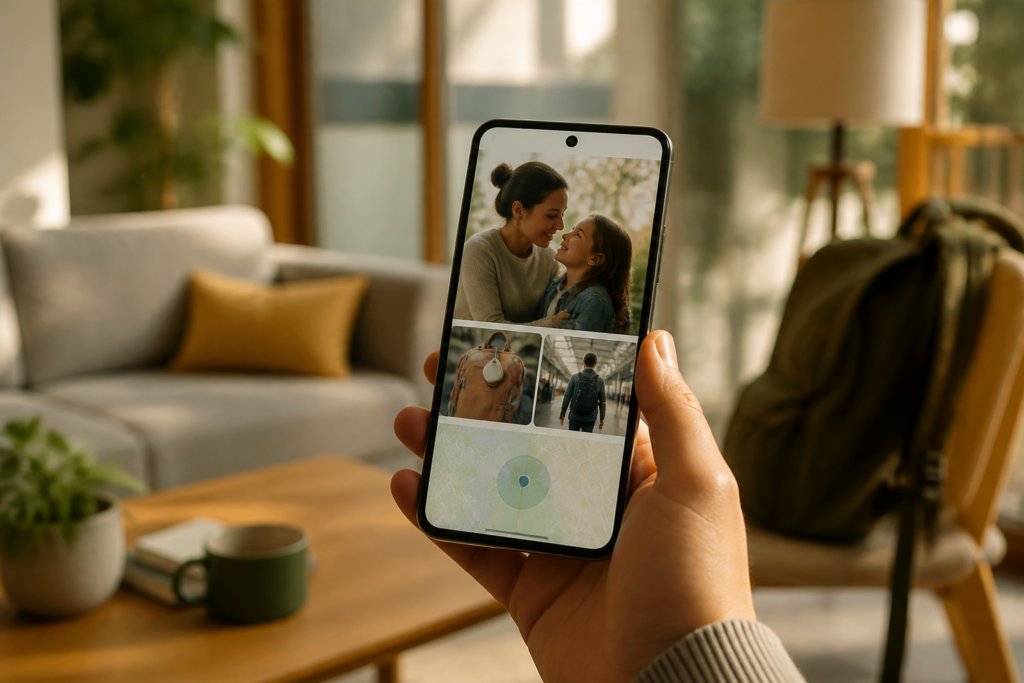
Google’s September Android Drop focuses on two small but practical problems: remembering where you stored something and feeling sick while looking at your phone in a moving vehicle.
The most useful distinction is that Find Hub’s new remembered-items feature is not the same as tracking a tagged object. It records the storage information you give it, such as “my passport is in the bedroom drawer.” It cannot make an untagged item transmit its live location. Motion Assist is also not a medical treatment. It is a visual comfort feature designed for passengers who want to read, browse, or watch something during a ride.
Google announced the drop on September 1, 2026. As of October 5, 2026, the two features have different requirements: remembered items are intended for Android 16 or later, while Motion Assist requires Android 17 or later and updated Google Play services.
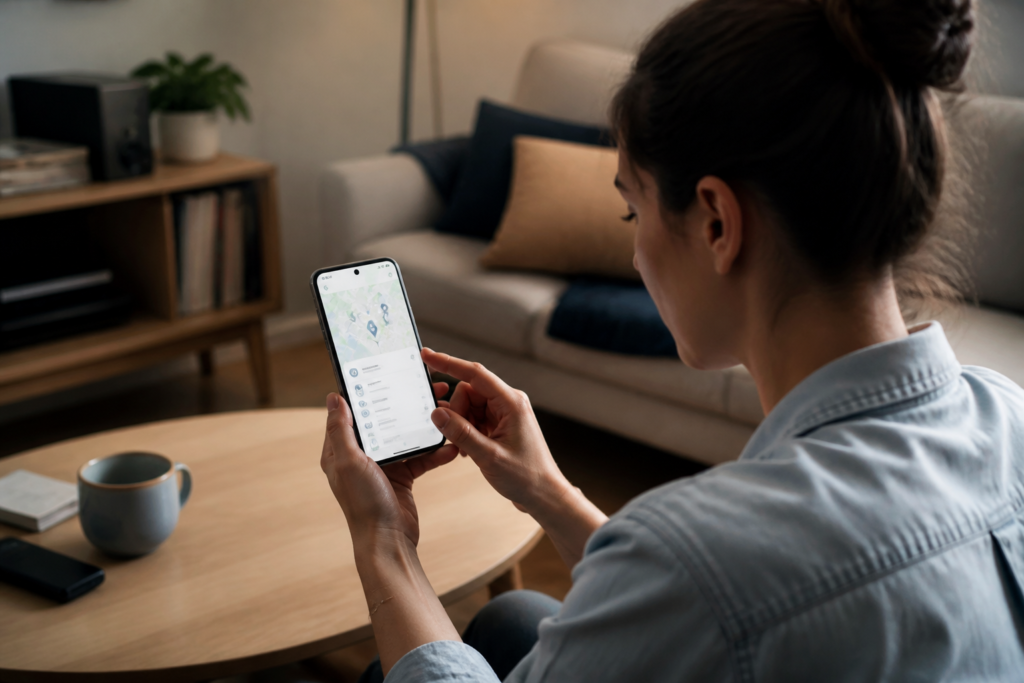
Find Hub remembered items use Gemini to save a description of an object and where you put it. You might say, “Hey Google, remember in Find Hub that I put my passport in the top bedroom drawer.” Later, you can ask Gemini where the passport is or open the remembered-items area in the Find Hub app.
You can use the feature for documents, spare keys, glasses, batteries, tools, a wallet, a television remote, or other objects that are easy to misplace. Google also describes use cases such as remembering where you parked a car or where you left a picnic blanket. These are stored reminders, not Bluetooth tracking.
For the Gemini-based feature to work, Google says you need an Android device running Android 16 or later, the Find Hub and Gemini apps installed, and the same Google Account signed in to both apps. Gemini must also be set as the device’s default digital assistant.
View the official Find Hub remembered-items setup guideYou can also add or edit items manually in Find Hub. The app lets you enter an item name, storage spot, and broader location. Depending on your permissions, it may use your current address when you save or update an item. You can add up to two photos and extra notes to make the reminder more useful.
If you move the object, update the existing entry instead of creating a second one. For example, say, “Gemini, update in Find Hub that my passport is now in the home safe.” The support instructions say that using the existing item’s exact name can update its storage spot.
| Feature | What it does | What it does not do |
|---|---|---|
| Remembered items | Stores the item and location details you provide | Does not show the live location of an untagged object |
| Bluetooth tracker | Can help locate a tagged object through compatible tracking features | Requires a compatible tracker attached to the object |
| Find Hub device finding | Helps locate supported phones, accessories, and other connected items | Does not automatically know where every household object is |
Privacy is worth checking before you use the feature for sensitive belongings. Google’s current help information says remembered items are stored privately in your individual Google Account and are not shared with family members through this feature. Gemini needs an internet connection to process a new voice request, although saved entries can generally remain visible in the Find Hub app when you temporarily lose connectivity.
Find Hub’s broader device and accessory-finding network has separate privacy controls. If you use that network, review its location-sharing and offline-finding settings rather than assuming they are identical to remembered items.
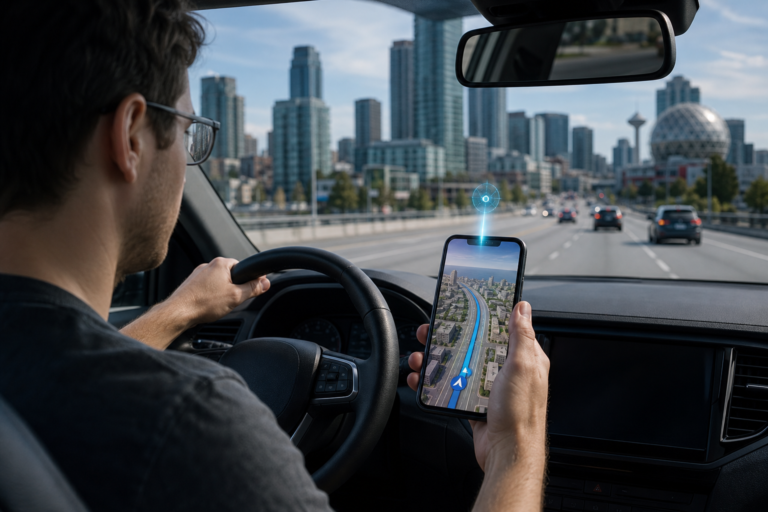
Review official Find Hub privacy controlsMotion Assist places subtle bubbles along the edges of your screen. The bubbles move in response to the vehicle’s turns, acceleration, and braking, using your phone’s motion sensors. The idea is to give your eyes a visual cue that better matches the movement your body is already feeling.
That makes it different from simply lowering brightness, using dark mode, or enabling a standard accessibility animation setting. Motion Assist is specifically designed for phone use while you are a passenger in a moving vehicle.
Google says the feature requires a phone running Android 17 or higher, with Google Play services updated. You can turn it on automatically when movement is detected or control it manually with a Quick Settings tile. The bubbles’ shape, color, and opacity can be customized.
Set up Motion Assist in Android SettingsAutomatic detection may not always recognize that you are in a moving vehicle, so Google recommends keeping the Quick Settings option available as a backup. You can also search for “Motion Assist” from the top of the Settings app if the menu layout on your phone is different.
Motion Assist may make screen use more comfortable, but it will not eliminate motion sickness for everyone. If you still feel unwell, stop looking at the screen, get fresh air when possible, and follow appropriate medical advice for persistent or severe symptoms. The feature should not be treated as a substitute for medical care.
The version requirements are the clearest part of Google’s announcement:
That does not guarantee every compatible phone will show the feature immediately. Google features can depend on app versions, Google Play services, language, account type, country, and staged rollout timing. Google lists both Canada and the United States among supported countries for the Gemini mobile app, but individual Gemini capabilities can still have separate availability requirements.
To check your Android version, open Settings, tap About phone or About tablet, and select Android version. You can also check for an available system update under Settings, then System, then Software update.
Check your Android version and available updatesStart with remembered items if you frequently misplace documents, keys, glasses, tools, or household supplies. It works best when you use specific descriptions and update the entry whenever you move something. A vague reminder such as “keys somewhere upstairs” will be less useful than “spare house key in the kitchen drawer.”
Try Motion Assist if you are comfortable using your phone as a passenger but start feeling queasy during car rides. Automatic activation is convenient, while the Quick Settings tile gives you more control when you are on a bus, in a rideshare, or traveling on winding roads.
Before troubleshooting, check the basics: your Android version, app updates, Google Play services, Gemini’s default-assistant setting, the Google Account used by both apps, and whether the feature has reached your device. If any of those requirements are missing, the setting may not appear even though your phone is otherwise relatively new.
A. Not as a live-tracking device. Remembered items save the location and storage details you provide. To locate an object through tracking technology, you need a compatible Bluetooth tracker or another supported connected device.
A. Google’s current support information says remembered items are stored privately in your individual Google Account. Family members cannot access or edit those entries through this feature.
A. Motion Assist requires Android 17 or later and updated Google Play services. If your phone meets those requirements, update the relevant apps, search Settings for “Motion Assist,” and allow time for Google’s feature rollout to reach your device.
A. No. It is a visual feature intended to make phone use more comfortable for passengers. It may not work for everyone and should not be considered a medical treatment or substitute for medical advice.