Welcome to KnowHow Daily!
Practical guides, money-saving tips, tech solutions, government benefits, and useful information for everyday life.
Welcome to KnowHow Daily!
Practical guides, money-saving tips, tech solutions, government benefits, and useful information for everyday life.

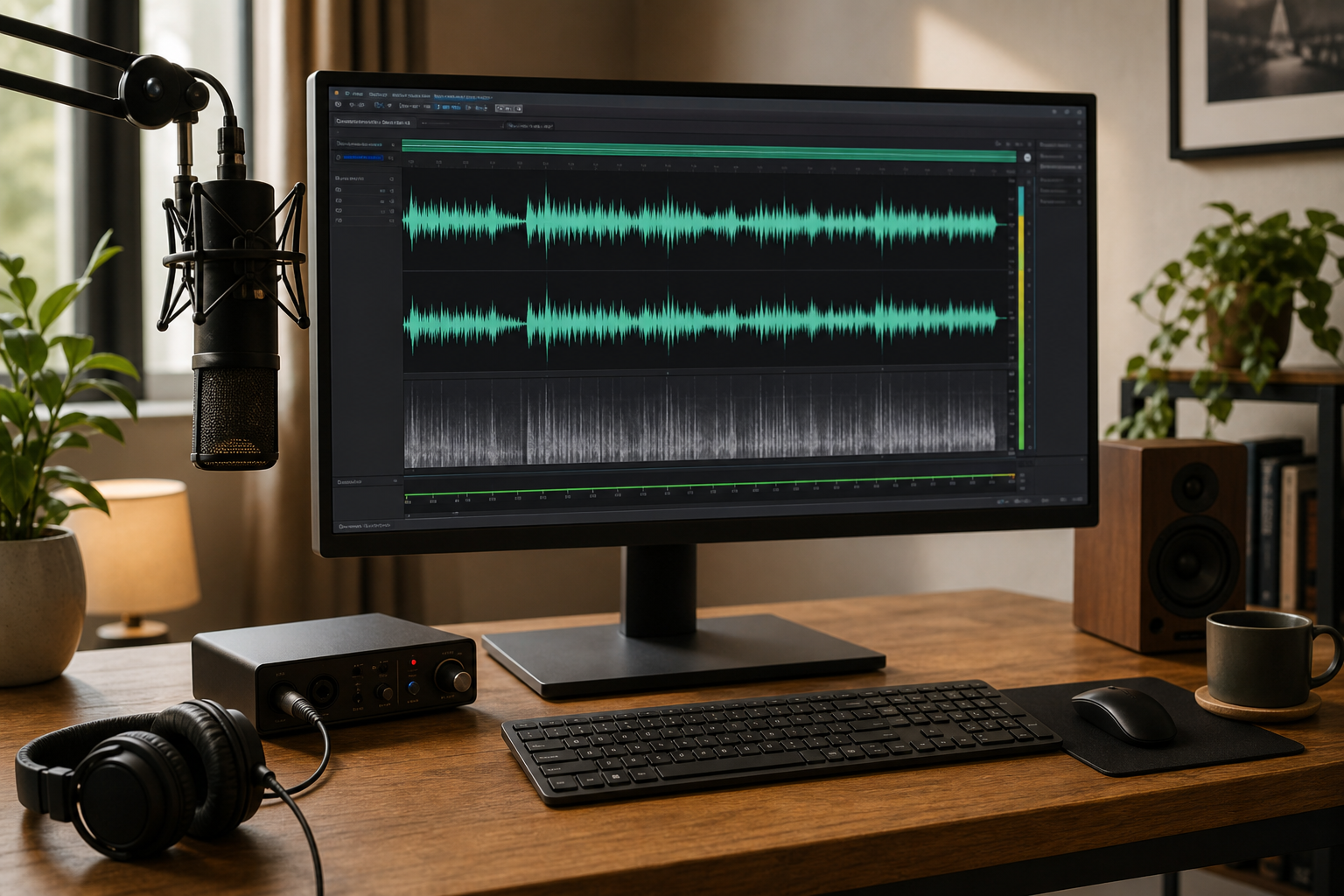
Audacity 4.0.0 is now available. See the biggest new features, removed tools, project compatibility details, and steps to update safely.
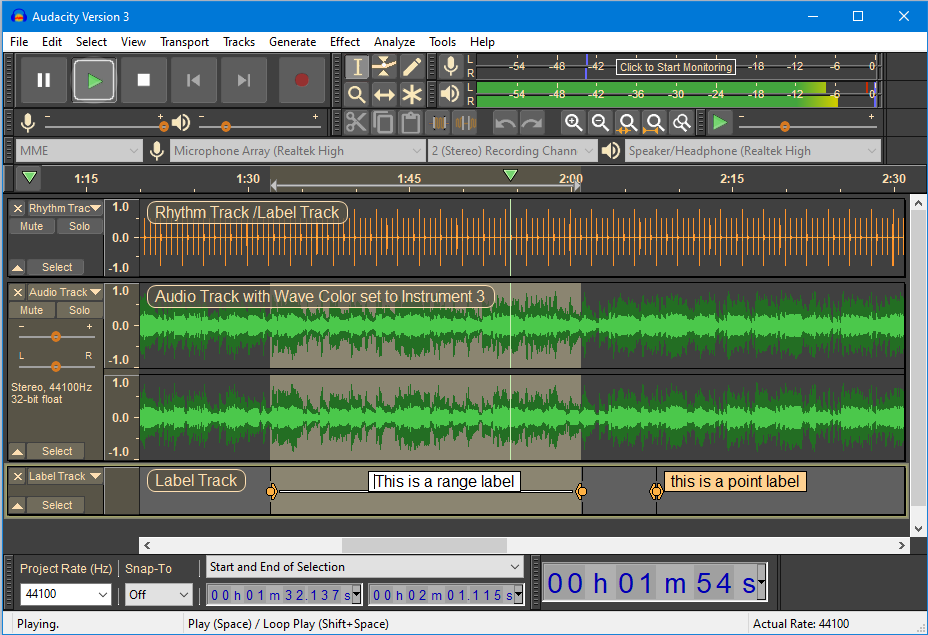
Audacity 4.0.0 was released on September 3, 2026. It’s the biggest redesign the free, open-source audio editor has received in years, but it isn’t simply a visual makeover. The update changes how clips are selected, moved, trimmed, grouped, recorded, and organized.
The application has been rebuilt on Qt, giving Audacity a more modern interface across Windows, macOS, and Linux. The core workflow should still feel familiar: tracks and the timeline remain central, common keyboard shortcuts are still available, and projects made in Audacity 3 can be brought into Audacity 4.
For users in Canada and the United States, Audacity 4 is available through the official Audacity download page. There’s no separate regional version or country-specific release process.
The most important change is the new clip-based editing model. In Audacity 4, you can select a clip directly by clicking its header, then Shift-click to select several clips. Once selected, clips can be moved, trimmed, or time-stretched together.
Clips can also be grouped so they stay together when you move, copy, paste, or duplicate them. They can be moved between compatible mono and stereo tracks, and dropping one clip over another replaces the overlapped section rather than simply preventing the move.
Trimming is non-destructive. If you cut away part of a clip, you can extend it later to recover the hidden audio. A dedicated Split tool is also included; press or hold the S key and click the waveform or clip header to split a clip.
Recording no longer has to begin at the end of existing material. Audacity 4 lets you start recording at any point on the timeline and creates a new clip at that position without automatically moving other clips out of the way.
The playhead remains visible while you navigate, and you can seek to another point during playback without stopping first. Punch and Roll, lead-in recording, latency compensation, software playthrough, and per-track input monitoring have also been rebuilt around the new interface.
Audacity 4 introduces Workspaces, which let you save different interface layouts for different jobs. The included Modern, Classic, and Music workspaces can be used as starting points, or you can create your own arrangement.
Toolbars and panels can be moved, docked, floated, hidden, or shown as needed. You can also switch between light, dark, and high-contrast themes, select an accent color, and assign colors to tracks and clips.
This is useful if you use Audacity for several types of work. A podcast workspace might prioritize voice tracks and meters, while a music workspace can provide a more production-focused timeline and layout.
The new Home screen displays recent projects with preview thumbnails instead of relying only on filenames. It can also provide access to cloud projects saved through audio.com.
Cloud saving remains optional. You can continue saving projects locally, or use audio.com when you want access from another device or need a sharing workflow.
Live playback and recording meters are now available in track headers, making it easier to monitor levels without relying only on the main meter area. The official Windows builds also include ASIO playback and recording support.
Audacity’s built-in effects, generators, and analyzers have been rebuilt for the Qt interface. Realtime effect stacks can be managed on individual tracks and on the master output, and effect preset handling is more consistent.
The spectrogram has also been redesigned with clearer guides and rulers, along with faster rendering. Plugin support includes VST3, Nyquist, LV2 on Linux, and Audio Units on macOS. Audacity 4 can also display generated controls when a plugin’s own interface isn’t available.
The interface may take a little time to learn because several older tools and controls have been replaced with context-sensitive editing.
| Audacity 3 workflow | Audacity 4 replacement |
|---|---|
| Select, Envelope, Draw, and Multi-tool modes | Context-sensitive controls, Clip gain mode, sample-level drawing, and the Split tool |
| Sync-Lock | Explicit ripple-editing commands for leaving a gap or moving later material |
| Separate tool switching | Clip handles, direct clip selection, and keyboard-driven actions |
| Traditional project browsing | Home screen with recent-project thumbnails |
The old Sync-Lock system has been removed. To keep tracks synchronized while deleting or inserting material, use the Audacity 4 commands that delete and close a gap across tracks or insert material while preserving sync.
Audacity 4 is a major release, but it doesn’t include every Audacity 3 feature. The official release notes say the following are not available in version 4.0:
Some exporting and rendering features, analyzers, and effects are also still missing. The Audacity team says these areas are being worked on for future releases, but users shouldn’t assume that every older function will be restored immediately.
If your work depends heavily on MIDI, macros, the Mixer, or a particular legacy plugin format, keep Audacity 3 installed for now and test Audacity 4 on a copy of your projects.
Audacity 4 uses a new .aup4 project format. Existing .aup3 projects can be opened and converted, and Audacity leaves the original .aup3 file unchanged.
There is one important limitation: after a project is converted and saved as .aup4, it cannot be saved back to .aup3. That means the safest approach is to make a backup before opening important projects in Audacity 4.
Older .aup projects can also be imported, but projects that depend on unavailable features or unsupported plugins may need adjustments.
The most reliable option is to download the current installer from the official Audacity website. Audacity 4 is available for Windows, macOS, and Linux. You can download the standard package through MuseHub or choose the official “without MuseHub” download.
The official Windows builds include ASIO support. Windows on ARM users should choose the appropriate ARM64 build where offered and confirm plugin compatibility before moving production work over.
For new users, Audacity 4 is the version to try first. The interface is more flexible, clip editing is more capable, and the application remains free and open source.
Existing users should be more selective. Update now if you mainly record microphones, edit podcasts, cut music, restore recordings, or export standard audio files. Wait or keep Audacity 3 available if you rely on MIDI tracks, Time Tracks, Macro Manager, the Mixer, VAMP or LADSPA plugins, or any workflow that depends on features not yet included.
In either case, back up important projects before converting them. The original .aup3 files are preserved, but Audacity 4 projects cannot be converted backward to the older format.
A. Yes. Audacity 4 remains free and open source under the GPL v3 license. Optional services such as audio.com cloud storage and third-party plugins may have their own terms or pricing.
A. Yes. Audacity 4 can open .aup3 projects and convert them to the new .aup4 format. The original .aup3 file remains unchanged, but the converted project cannot be saved back to .aup3.
A. Keeping Audacity 3 available is a sensible precaution, especially if you use MIDI, Time Tracks, macros, the Mixer, or older plugin formats. Install Audacity 4 separately, back up your projects, and test copies before changing your regular workflow.
A. Audacity 4 supports VST3, along with Nyquist, LV2 on Linux, and Audio Units on macOS. Some Audacity 3 plugin formats and hosts, including VAMP and LADSPA hosting, are not available in version 4.0.