Welcome to KnowHow Daily!
Practical guides, money-saving tips, tech solutions, government benefits, and useful information for everyday life.
Welcome to KnowHow Daily!
Practical guides, money-saving tips, tech solutions, government benefits, and useful information for everyday life.

Apple released iOS 27.0.1 and related September updates. See compatible devices, published security details, backup steps, and how to check your update.
Apple released iOS 27.0.1 and iPadOS 27.0.1 on September 28, 2026. The same release list includes macOS Golden Gate 27.0.1 and visionOS 27.0.1. Apple also lists iOS 26.7.1, iPadOS 26.7.1, macOS Tahoe 26.7.1, and macOS Sequoia 15.8.1 for devices that remain on an earlier software branch.
That distinction matters. Your iPhone, iPad, or Mac may not be offered the newest major-version update, and Apple does not give every product the same version number. The safest approach is to check the update screen on each device instead of assuming that iOS 27.0.1, iPadOS 27.0.1, or macOS 27.0.1 applies to everything you own.
Apple’s security-release page says iOS 27.0.1 and iPadOS 27.0.1 have no published CVE entries. In practical terms, Apple has not published specific vulnerability identifiers for those releases at this time. That is not the same as a guarantee that the update contains no security-related changes, nor does it mean older software will receive the same fixes.
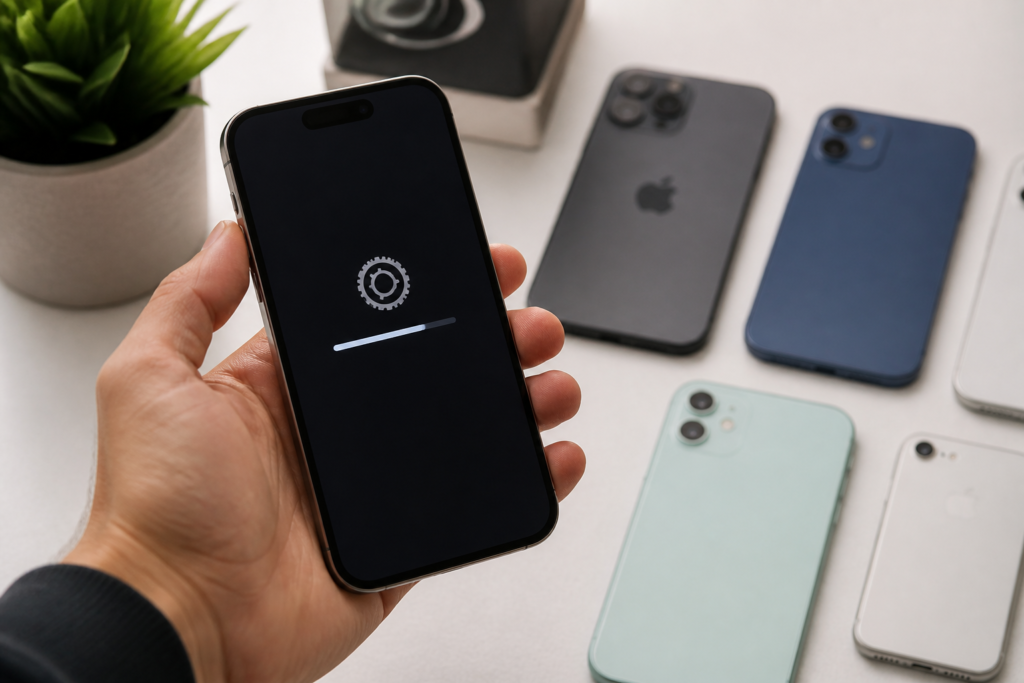
Apple’s September 28 security table lists iOS 27.0.1 and iPadOS 27.0.1 for iPhone 11 and later, along with these iPad families:
Apple’s iOS 27 device guide also lists the iPhone SE 2nd and 3rd generation among models compatible with iOS 27. Because Apple’s release table and device guide organize compatibility differently, the update shown in Settings is the final practical check for your particular device.
To identify your iPhone or iPad, open Settings > General > About. Look for the model name and current software version before opening Software Update.
Check iPhone and iPad compatibility with iOS 27Apple released iOS 26.7.1 and iPadOS 26.7.1 on the same date for devices that use the previous software branch. Apple lists iPhone 11 and later for that release as well, but the iPad compatibility list differs from iPadOS 27.0.1. It includes older models such as the iPad Pro 12.9-inch, 3rd generation, the 11-inch iPad Pro, 1st generation, iPad Air 3rd generation, iPad 8th generation, and iPad mini 5th generation.
If your device does not show iOS 27.0.1 or iPadOS 27.0.1, do not try to force the version through an unofficial download. Apple may be directing your device to a supported branch instead. Installing the update that appears in Software Update is generally more useful than chasing a version number that was not released for your model.
Mac owners have several possible paths. Apple lists macOS Golden Gate 27.0.1 for the newest Mac software branch, macOS Tahoe 26.7.1 for systems on Tahoe, and macOS Sequoia 15.8.1 for supported Sequoia installations. The correct update depends on your Mac model and the version already installed.
Apple lists no published CVE entries for macOS Golden Gate 27.0.1 and visionOS 27.0.1. For Apple Watch, the release details are more specific: Apple lists watchOS 27 for Apple Watch Series 9 and later, while watchOS 27.0.1 is listed for Apple Watch Series 12 and Apple Watch Ultra 4, with a September 23, 2026 release date.
Those differences are a good reason not to treat every “27.0.1” update as interchangeable. Check each product separately, especially if you use an iPhone with an Apple Watch or Mac that may remain on another software branch.
For a supported iPhone or iPad, installing the update is the sensible default once you have a current backup and enough time for the device to restart. Apple recommends keeping its software up to date for security, stability, and compatibility, and the update may also address bugs that are not described in the public security table.
There is no need to interpret “no published CVE entries” as a reason to avoid the release. It simply means Apple has not attached publicly listed CVE identifiers to that update. It also does not tell you whether every bug or internal security improvement has been described publicly.
If your device is used for work, travel, medical records, two-factor authentication, or other important tasks, install at a convenient time rather than immediately before you need it. Check that essential apps, accessories, and workplace tools support the new system if your organization has stricter compatibility requirements.
Before updating an iPhone or iPad, create a fresh iCloud backup or a computer backup. For an iCloud backup, go to Settings > [your name] > iCloud > iCloud Backup, then choose Back Up Now. Keep the device connected to Wi-Fi until the backup finishes.
You can also connect the device to a Mac and use Finder. An encrypted local backup can preserve Health and Activity data, but you must remember the backup password because Apple cannot recover it for you.
For a Mac, use Time Machine or another trusted backup method before installing a major system upgrade. A standard point update is usually routine, but a complete backup is still the better preparation if the Mac contains important work or personal files.
Back up your Mac with Time Machine Back up your iPhone or iPad before updatingOn a Mac, open Apple menu > System Settings > General > Software Update. Software Update is designed to show versions compatible with that Mac. If an iPhone or iPad cannot update wirelessly, Apple also supports updating through Finder on a Mac.
Upgrade macOS through Software UpdateRemember that Apple says iOS, iPadOS, tvOS, watchOS, and visionOS updates cannot be downgraded after installation. That makes a current backup and a quick compatibility check worthwhile before you tap Install.
First, confirm the device has an internet connection, enough free storage, and a compatible model. Restarting the device can help if Software Update is temporarily stuck, but do not erase the device simply because the update is not visible.
Troubleshoot an iPhone or iPad that won't updateIf Apple offers a different version, that is usually the version intended for your current software branch. If the installation fails repeatedly, try updating through Finder on a trusted Mac after making a backup. For business-managed devices, an administrator may also control when updates become available.
As of September 30, 2026, Apple has confirmed the September 28 release date for iOS 27.0.1 and iPadOS 27.0.1, but it has not published a separate detailed list of fixes for those releases beyond the security-release information. Treat the version offered directly by your device as the authoritative next step.
A. No. It means Apple has not published CVE identifiers for that release. The update may still include bug fixes, internal security improvements, or compatibility changes, so supported devices should generally stay current after a backup.
A. Apple maintains more than one software branch. The version offered depends on your device model, current system, and Apple’s compatibility rules. Install the version shown in Settings rather than trying to force a different release.
A. Apple says iOS, iPadOS, watchOS, tvOS, and visionOS updates cannot be downgraded after installation. Make a current backup and confirm that important apps or workplace tools are ready before updating.
A. Back up the device, connect it to a trusted Mac, open Finder, select the device, choose General, and select Check for Update. Follow the onscreen instructions and keep the device connected during installation. Update an iPhone or iPad with Finder








FDA Infant Formula Standards Proposal: What Parents Need to Know About Nutrient Changes and the Comment Deadline